Zebra printer driver (ZDesigner)
The Zebra printer driver for Windows is called ZDesigner. Install it before you connect the printer: version 10 is for Link-OS printers that use ZPL, and version 5 still covers new and legacy models that use EPL or CPCL. Get it from your model's Downloads tab on Zebra's support site, then run the Printer Installation Wizard.
Checked November 3, 2026 against the manufacturer's own pages.
The short version
What to install and where it comes from. Every link goes to the manufacturer or Microsoft, never to a copy.
Official files only, nothing bundled
Step by step
Leave the printer unplugged
Zebra's setup pages open with the same warning: do not connect the printer to the computer yet. If Windows sees it over USB before the driver is in place, it can show up as an unknown or unspecified device.
Find your model on Zebra's site
Open Zebra's printer support page, search the model name, for example ZD421 or ZT411, and open the Downloads tab. Zebra lists the drivers, firmware and operating system files for that model there.
Choose v10 or v5
If your printer runs Link-OS and speaks ZPL, take the Windows Printer Driver v10. For a printer that uses EPL or CPCL, take ZDesigner v5. Each release note has the full list of supported models.
Run the Printer Installation Wizard
Extract the download if needed and run PrnInst.exe. Click Install Printer Driver and follow the prompts. Your Windows account must have rights to install drivers, or ask your IT admin.
Connect and power on
Plug in the USB cable when the wizard asks, then switch the printer on. Zebra recommends Zebra Setup Utilities next, to set up a wired or wireless connection and print a test label.
Match the driver to your labels
Load the media, calibrate, and check that the driver's label size and media settings match the roll in the printer. Wrong media settings cause skipped labels and image drift.
Faster option: update drivers automatically
The steps above fix this one device. If several drivers are old, a driver updater finds and installs them all in one go, and backs up the current ones first.
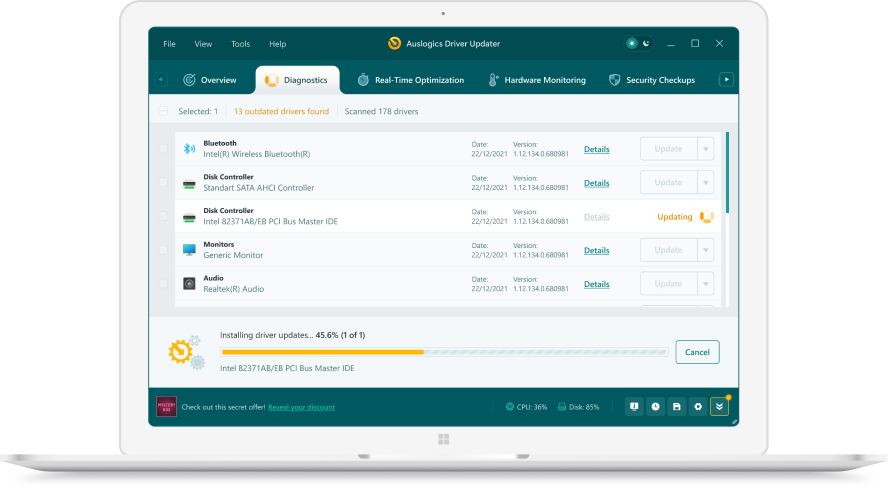 1. Scan. Download the free version and run a scan.
 2. Review. See each old or missing driver with its newer version.
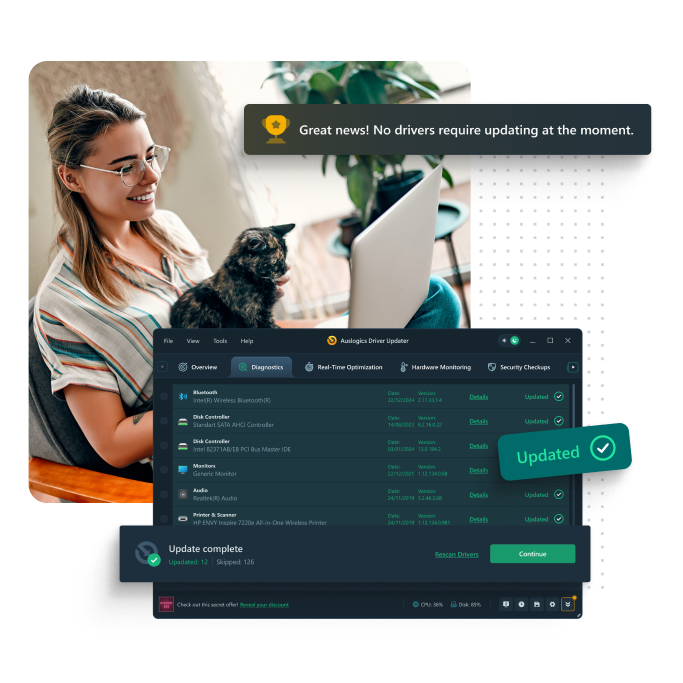 3. Update. Update one driver free, or all at once with Pro.

Update this driver automatically
Finds and updates this driver and every other outdated driver on your PC.
Auslogics Driver Updater · Free scan · Windows 11, 10, 8, 7 · Backup before every change
ZDesigner v10 and v5: which one fits your printer?
Zebra keeps two driver families alive. Version 10 has a newer interface in more than 20 languages and targets printers running Link-OS with the ZPL command language. Version 5 stays available because it supports new and older Zebra printers that use EPL or CPCL. The v10 release notes list desktop lines such as ZD220, ZD421 and ZD621, industrial ZT models, mobile ZQ models and the ZE print engines.
| Your printer | Command language | Driver to install |
|---|---|---|
| Link-OS desktop, industrial or mobile model | ZPL | ZDesigner v10 |
| Older or non Link-OS model | EPL or CPCL | ZDesigner v5 |
If the model name on your printer is not in the v10 list, check the v5 release notes on the same Downloads tab before you install.
What changes when you move from v5 to v10?
Zebra documents several differences. The unprintable area options are gone, and a v5 to v10 upgrade keeps the label image in the same position. The Font and Graphic downloader no longer ships with v10, because font download now sits inside the driver’s own window. The Status Monitor app still ships with v5 only, but Zebra says it can be used with the v10 driver. Import and export of driver settings moved to the Driver Settings tab.
Why does my Zebra printer print blank or cut labels?
Most of these problems are media settings, not a broken driver. Zebra notes that printers have different minimum label lengths for tear-off, peel-off and cutter modes. Run a SmartCal media calibration, then print a configuration report. On a thermal transfer model, check that a ribbon is loaded. Then open the ZDesigner printing preferences and confirm the label width and height match the roll.
Questions
My Zebra printer shows as Unspecified in Devices and Printers. What now?
Zebra's guide covers this. Open Control Panel, Devices and Printers, right-click the printer, choose Properties, then the Hardware tab, Properties, Change settings, Driver tab, Update Driver. Browse to the folder with the ZDesigner download and click Next.
Does ZDesigner work on Windows 11?
Yes. The v10 release notes list Windows 10 and Windows 11 desktop editions, plus Windows Server 2019, 2022 and 2025, in 32-bit and 64-bit on x86, x64 or Arm processors.
Is Zebra Setup Utilities a driver?
No, it is a free Windows tool. Zebra says it is used to install drivers and to configure and manage desktop, mobile and industrial label printers. Zebra now offers the Windows version from its Nucleus Connector support page.
Where did the number of copies option go in v10?
Zebra removed it from the v10 driver. The number of copies is now set in the application you print from, such as your label design program.