Install a printer driver
To install a printer driver, connect the printer and go to Settings, Bluetooth & devices, Printers & scanners, Add device: Windows installs a driver itself for most printers. For full features or an older model, download the package for your exact model from the printer maker's support site. Microsoft calls Windows Update the recommended way to get and update printer drivers.
Checked November 3, 2026 against the manufacturer's own pages.
The short version
What to install and where it comes from. Every link goes to the manufacturer or Microsoft, never to a copy.
Official files only, nothing bundled
Step by step
Add the printer and let Windows choose
Turn the printer on and connect it by USB or to the same network. Open Settings, Bluetooth & devices, Printers & scanners, select Add device and pick your printer when it appears. On Windows 10 the path is Settings, Devices, Printers & scanners.
Check Windows Update for a newer driver
Open Settings, Windows Update, Advanced options, Optional updates. If a printer driver is listed, tick it and select Download and install.
Install the maker's full package if you need it
Find the model number on the printer's label. On the maker's support site, open Drivers or Software, choose your Windows version, download, right-click the file and select Open, then follow the prompts. Discs that came in the box may hold old versions.
Use the Add Printer Driver wizard for older models
In Printers & scanners, select Printer server properties under Related settings. On the Drivers tab choose Add, Next, your processor type, then the Windows Update button. Pick the maker and model and select Finish. This only adds the driver; add the printer afterwards.
Remove an old driver
Remove the printer first in Printers & scanners, since a driver in use cannot be deleted. Then open Printer server properties, Drivers tab, select the driver, choose Remove, then the option to remove the driver and driver package, and confirm.
Restart and print a test page
Restart the PC, open the printer in Printers & scanners, choose Printer properties and select Print Test Page.
Faster option: update drivers automatically
The steps above fix this one device. If several drivers are old, a driver updater finds and installs them all in one go, and backs up the current ones first.
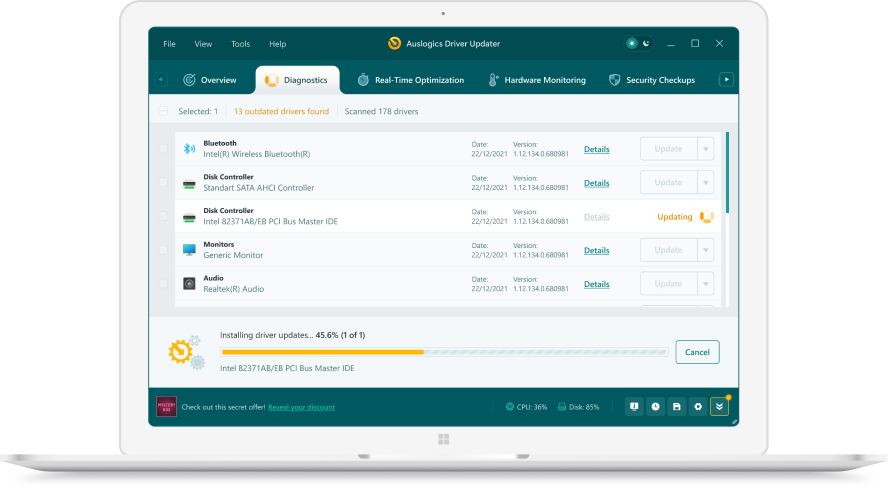 1. Scan. Download the free version and run a scan.
 2. Review. See each old or missing driver with its newer version.
 3. Update. Update one driver free, or all at once with Pro.

Update this driver automatically
Finds and updates this driver and every other outdated driver on your PC.
Auslogics Driver Updater · Free scan · Windows 11, 10, 8, 7 · Backup before every change
Do I still need a printer driver at all?
Often not. Microsoft’s Windows Ready Print talks to printers over the Internet Printing Protocol without any third-party driver, and it is built to work with Mopria certified printers. Microsoft states that many existing printers are already compatible. When you use Add device and Windows finds the printer on its own, it may already be using this built-in path. The maker’s full package still matters for extras such as ink level tools, scan software, finishing options on office models, and older printers that lack IPP support.
Microsoft has also announced an end of servicing plan for legacy third-party printer drivers. Read that as a signal: for a new printer, picking a Mopria certified model means fewer driver chores later.
Driver only, or driver and package?
When you choose Remove on the Drivers tab, Windows asks how far to go. Removing the driver alone leaves its package in the Driver Store, so Windows can reinstall it quickly later. Removing the driver and driver package deletes both, which is what you want when an old or broken driver keeps coming back. If removal fails because the driver is in use, check for a second copy of the printer, such as one added over the network and one by USB, and remove both.
Which source should I use for my printer?
| Situation | Best source |
|---|---|
| New Mopria certified printer | Add device in Printers & scanners |
| Need scanning, ink tools or fax | Printer maker’s full software package |
| Older printer not found by Add device | Add Printer Driver wizard with Windows Update |
| Business printer on a print server | Your IT administrator |
Questions
How do I update a printer driver?
Microsoft lists Windows Update first, then the maker's site. You can also remove the printer and add it back so Windows fetches the current driver. Device Manager has an Update driver option under Printers or Print queues.
What is Windows protected print mode?
A Windows 11 setting under Printers & scanners, Printer preferences. It allows printing only through Windows Ready Print, the built-in driverless system for Mopria certified printers. Turning it on uninstalls printers that use third-party drivers.
My printer vanished after I turned on protected print mode. How do I get it back?
Microsoft says printers using third-party drivers are uninstalled. Reinstall it if it is Mopria certified, or turn the mode off under Printer preferences and reinstall it with its original driver. On a work PC, an administrator may have locked the setting.
Why does my ARM laptop refuse the printer maker's installer?
Microsoft notes that some ARM PCs, including Copilot+ PCs, cannot use the maker's installer. Add the printer through Printers & scanners, Add device instead, unless the maker gives Windows on ARM steps.