DYMO printer driver
The DYMO printer driver installs with DYMO's label software, so you download the software, not a separate driver. DYMO Connect for Desktop supports the LabelWriter 5 series, 450 series and 4XL on Windows 10 or later. Get it from DYMO's Driver & Software Downloads page and install it before you connect the printer by USB.
Checked November 3, 2026 against the manufacturer's own pages.
The short version
What to install and where it comes from. Every link goes to the manufacturer or Microsoft, never to a copy.
Official files only, nothing bundled
Step by step
Unplug the LabelWriter
DYMO says to install the software before you connect the printer by USB. That way the correct LabelWriter driver is in place the first time Windows sees the printer.
Open DYMO's downloads page
Go to DYMO's Driver & Software Downloads page and open The Latest Software & Drivers for all LabelWriters and LabelManager. This is DYMO Connect for Desktop.
Pick your Windows type
Under Windows, choose Intel 64-bit (x64), Intel 32-bit (x86) or ARM64, then click Download. Not sure? Check Settings, System, About and read System type.
Install, then connect
Run the installer and finish it. Then plug the USB cable into the printer and the PC, switch the printer on and start DYMO Connect. The printer should appear in its printer list.
Add a network LabelWriter
For a printer on your network, install DYMO Connect on every PC that will print to it. Then open the File menu and choose Add network printer.
Check the driver if printing stops
DYMO notes that the LabelWriter driver installs with DYMO Connect but can be changed or deleted by mistake. Look under Settings, Bluetooth & devices, Printers & scanners. If the LabelWriter is missing, reinstall DYMO Connect.
Faster option: update drivers automatically
The steps above fix this one device. If several drivers are old, a driver updater finds and installs them all in one go, and backs up the current ones first.
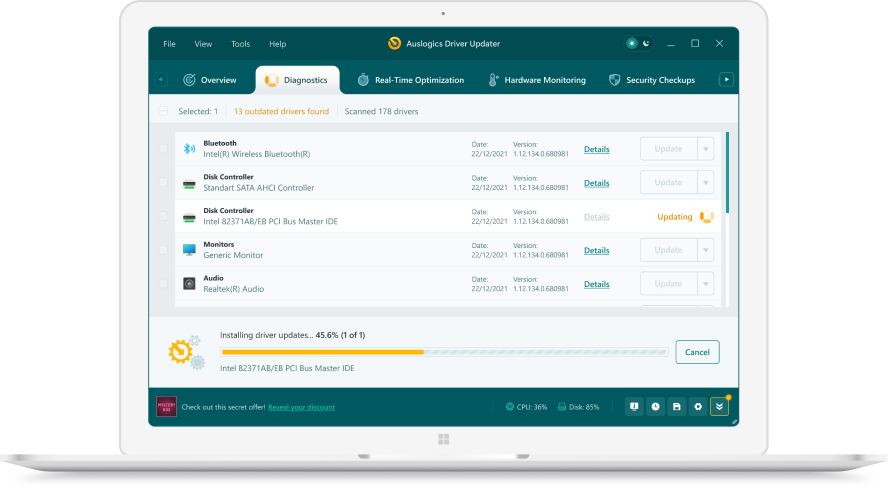 1. Scan. Download the free version and run a scan.
 2. Review. See each old or missing driver with its newer version.
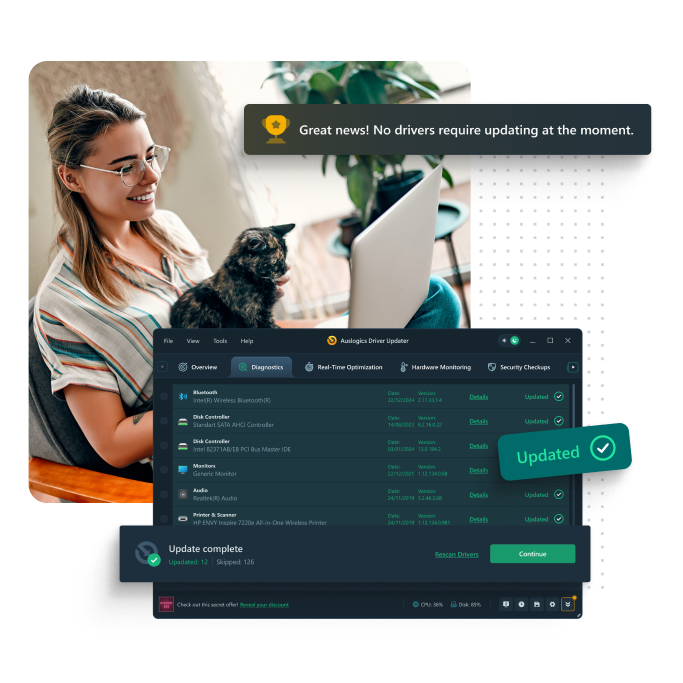 3. Update. Update one driver free, or all at once with Pro.

Update this driver automatically
Finds and updates this driver and every other outdated driver on your PC.
Auslogics Driver Updater · Free scan · Windows 11, 10, 8, 7 · Backup before every change
DYMO Connect or DYMO Label: which one do you need?
DYMO now keeps two programs on its downloads page. DYMO Connect for Desktop is the current one. DYMO Label v8 stays available for legacy printers, and DYMO lists its Windows build for Windows 7 to Windows 11.
| Your printer | Software DYMO lists | Windows on DYMO’s page |
|---|---|---|
| LabelWriter 550, 550 Turbo, 5XL | DYMO Connect for Desktop | Windows 10 or later |
| LabelWriter 450, 450 Turbo, Twin Turbo, Duo | DYMO Connect, or DYMO Label v8 | Windows 10 or later (Connect) |
| LabelWriter 4XL | DYMO Connect, or DYMO Label v8 | Windows 7 to Windows 11 (Label v8) |
On a new PC, start with DYMO Connect. Switch to DYMO Label v8 only if you rely on an older add-in or workflow that needs it.
LabelWriter 450 and 550 differences that affect the driver
The 450 and 550 families share the same software today, but they behave differently. The 550 series reads Authentic DYMO LW labels through Automatic Label Recognition, so the software knows the label size and the count left on the roll. DYMO’s 550 guide also lists Windows 8.1 or later and macOS 10.14 or later for the printer itself, while the current DYMO Connect download asks for Windows 10 or later. The latest DYMO Connect release notes add Windows on ARM support for the 450, 450 Turbo, Twin Turbo, Duo and 4XL. The LabelWriter 450 Twin Turbo has two side by side label printers in one case, and DYMO Connect has its own settings for it.
Printing from Word and Excel
DYMO Connect installs a DYMO Label Add-in for Microsoft Word when Word is already on the PC, so you can print addresses straight from a document. DYMO’s release notes also list an add-in for Excel on Windows. Because the add-in only installs when Word is present, a PC that got Office after DYMO Connect may not have it. Running the DYMO Connect installer again after Office is in place is the simple way to add it.
Questions
Which DYMO software works with the LabelWriter 450?
Both. DYMO lists the 450 series as supported by DYMO Connect for Desktop. The older DYMO Label v8 also covers it, because DYMO offers that program for the LabelWriter 4 series and older.
Does the LabelWriter 550 work with DYMO Label v8?
DYMO's 550 user guide names DYMO Connect for Desktop as the software to install, and DYMO offers DYMO Label v8 only for the 4 series and older. So use DYMO Connect with any 550, 550 Turbo or 5XL.
Why does my LabelWriter 550 not recognize the labels?
DYMO states that 550 series printers work only with Authentic DYMO LW labels, and any other labels will not be recognized. Those labels also let the software read the label size and how many are left on the roll.
Can I keep my old DYMO Label address book?
Yes. DYMO Connect can import an address book made in DYMO Label. Open a contact list and choose Import from DYMO Label, then browse to the old file in your Documents folder.