Device Manager error codes
A Device Manager error code is the number Windows shows in Device status when a device has a problem. Open Device Manager, right-click the device with the yellow warning icon, choose Properties and read the General tab. For most codes Microsoft's first fix is to update or reinstall the driver, using Windows Update or the PC maker's driver first.
Checked November 3, 2026 against the manufacturer's own pages.
The short version
What to install and where it comes from. Every link goes to the manufacturer or Microsoft, never to a copy.
Official files only, nothing bundled
Step by step
Open Device Manager
Right-click the Start button and select Device Manager. A device with a problem usually shows a yellow triangle with an exclamation mark.
Read the code in Device status
Double-click the category, right-click the flagged device and choose Properties. The General tab has a Device status box. The number in brackets at the end of the text, such as (Code 43), is the error code.
Match the code in the table below
Find the number in the table on this page. It gives Microsoft's message, a plain-English meaning and the first thing to try. Codes with their own guide link to it.
Try a restart for temporary codes
Codes 14, 21, 38, 42, 44 and 54 are cleared by a full restart according to Microsoft. Use Start, Power, Restart rather than shutting the lid.
Update or reinstall the driver
For driver codes, run Windows Update and check Advanced options, Optional updates first. If the code stays, uninstall the device in Device Manager, then use Action, Scan for hardware changes so Windows installs it again.
Get the driver from the right maker
If Windows has no working driver, download it from your PC or laptop maker's support page for your model. Use the chip maker, such as Intel, AMD or NVIDIA, only after that.
Faster option: update drivers automatically
The steps above fix this one device. If several drivers are old, a driver updater finds and installs them all in one go, and backs up the current ones first.
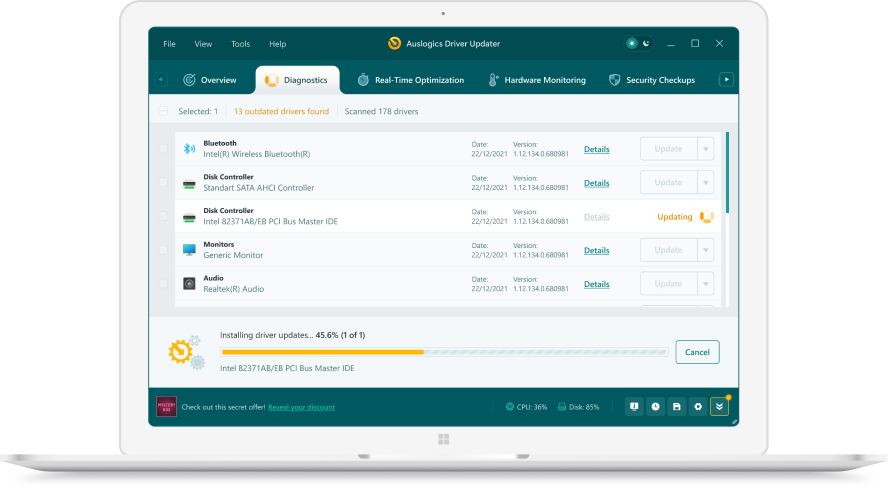 1. Scan. Download the free version and run a scan.
 2. Review. See each old or missing driver with its newer version.
 3. Update. Update one driver free, or all at once with Pro.

Update this driver automatically
Finds and updates this driver and every other outdated driver on your PC.
Auslogics Driver Updater · Free scan · Windows 11, 10, 8, 7 · Backup before every change
How do I see the error code?
Windows only puts a number on a device problem in one place. In Device Manager, double-click the category that holds the device, right-click the device and choose Properties. Microsoft says you can see the error code in the Device status area of that dialog box. Other tools, such as DXDiag, can report the same code. If you only see a yellow warning icon and no number, the device may still be installing, so wait a minute and press F5 to refresh the list.
Every Device Manager error code Microsoft lists
The messages below are copied from Microsoft’s support article and its Learn reference. Long messages end with three dots where Microsoft shortens them. The plain meaning and first fix follow Microsoft’s recommended resolution for each code.
| Code | Microsoft’s message | What it means | First fix |
|---|---|---|---|
| 1 | This device is not configured correctly. (Code 1) | No driver, or a badly set up one | Update the driver from the Driver tab |
| 3 | The driver for this device might be corrupted, or your system may be running low on memory… (Code 3) | Damaged driver or low memory | Close apps, then reinstall the driver |
| 9 | Windows cannot identify this hardware because it does not have a valid hardware identification number… (Code 9) | Invalid hardware ID | Contact the hardware maker |
| 10 | This device cannot start. (Code 10) | A driver failed to start the device | Update the driver |
| 12 | This device cannot find enough free resources that it can use… (Code 12) | Two devices want the same resources | Resolve the conflict, check the BIOS |
| 14 | This device cannot work properly until you restart your computer… (Code 14) | Pending restart | Restart |
| 16 | Windows cannot identify all the resources this device uses… (Code 16) | Partly configured device | Assign resources on the Resources tab |
| 18 | Reinstall the drivers for this device. (Code 18) | Driver needs reinstalling | Update or uninstall and rescan |
| 19 | Windows cannot start this hardware device because its configuration information (in the registry) is incomplete or damaged. (Code 19) | Bad registry entry for the device | Reinstall, or use a restore point |
| 21 | Windows is removing this device. (Code 21) | Removal in progress | Wait, press F5, or restart |
| 22 | This device is disabled. (Code 22) | You or an app disabled it | Right-click, Enable device |
| 24 | This device is not present, is not working properly, or does not have all its drivers installed. (Code 24) | Missing, failed or prepared for removal | Remove the device |
| 28 | The drivers for this device are not installed. (Code 28) | No driver found | Install the driver |
| 29 | This device is disabled because the firmware of the device did not give it the required resources. (Code 29) | Turned off in the BIOS | Enable it in the BIOS |
| 31 | This device is not working properly because Windows cannot load the drivers required for this device. (Code 31) | Driver would not load | Update the driver |
| 32 | A driver (service) for this device has been disabled… (Code 32) | Driver start type set to disabled | Uninstall and rescan |
| 33 | Windows cannot determine which resources are required for this device. (Code 33) | Resource translator failed | Update the BIOS, check hardware |
| 34 | Windows cannot determine the settings for this device… (Code 34) | Needs manual setup | Follow the hardware documentation |
| 35 | Your computer’s system firmware does not include enough information to properly configure and use this device… (Code 35) | BIOS table missing the device | BIOS update from the PC maker |
| 36 | This device is requesting a PCI interrupt but is configured for an ISA interrupt (or vice versa)… (Code 36) | IRQ translation failed | Change IRQ settings in the BIOS |
| 37 | Windows cannot initialize the device driver for this hardware. (Code 37) | Driver failed at its entry point | Uninstall and rescan |
| 38 | Windows cannot load the device driver for this hardware because a previous instance of the device driver is still in memory. (Code 38) | Old copy still loaded | Restart |
| 39 | Windows cannot load the device driver for this hardware. The driver may be corrupted or missing. (Code 39) | Corrupt or missing driver file | Reinstall the driver |
| 40 | Windows cannot access this hardware because its service key information in the registry is missing or recorded incorrectly. (Code 40) | Invalid service key | Uninstall and rescan |
| 41 | Windows successfully loaded the device driver for this hardware but cannot find the hardware device. (Code 41) | Driver loaded, device not found | Uninstall and rescan |
| 42 | Windows cannot load the device driver for this hardware because there is a duplicate device already running in the system. (Code 42) | Duplicate device detected | Restart |
| 43 | Windows has stopped this device because it has reported problems. (Code 43) | The driver reported a device failure | Reinstall, check hardware |
| 44 | An application or service has shut down this hardware device. (Code 44) | Device stopped by software | Restart |
| 45 | Currently, this hardware device is not connected to the computer… (Code 45) | Device unplugged, shown as hidden | Reconnect it |
| 46 | Windows cannot gain access to this hardware device because the operating system is in the process of shutting down… (Code 46) | Shutdown in progress | None, start the PC again |
| 47 | Windows cannot use this hardware device because it has been prepared for safe removal, but it has not been removed from the computer… (Code 47) | Ejected but still plugged in | Unplug and plug in again |
| 48 | The software for this device has been blocked from starting because it is known to have problems with Windows… (Code 48) | Driver blocked as incompatible | Get a new driver from the maker |
| 49 | Windows cannot start new hardware devices because the system hive is too large (exceeds the Registry Size Limit). (Code 49) | Too many old devices in the registry | Remove hidden, unused devices |
| 50 | Windows cannot apply all of the properties for this device… (Code 50) | Properties could not be set | Reinstall, ask the maker for a driver |
| 51 | This device is currently waiting on another device or set of devices to start. (Code 51) | Depends on a failed device | Fix the other failed device |
| 52 | Windows cannot verify the digital signature for the drivers required for this device… (Code 52) | Unsigned or damaged driver | Install a signed driver |
| 53 | This device has been reserved for use by the Windows kernel debugger for the duration of this boot session. (Code 53) | Kernel debugging is on | Turn off kernel debugging |
| 54 | This device has failed and is undergoing a reset. (Code 54) | ACPI reset running | Restart |
| 55 | This device is blocked from starting while the user is not logged in. (Code 55) | Kernel DMA Protection blocks it until sign in | Sign in to Windows |
| 56 | Windows is still setting up the class configuration for this device. (Code 56) | Setup not finished, often brief | Wait; for network adapters, Network reset |
| 57 | This device could not be assigned to a guest partition. (Code 57) | Hyper-V device assignment failed | See Microsoft’s Discrete Device Assignment guide |
Codes 55, 56 and 57 come from the Microsoft Learn reference, which also gives the developer name of each code, such as CM_PROB_FAILED_POST_START for Code 43.
Which codes are driver problems and which are not?
Most rows above are fixed with the same move: uninstall the device, then choose Action, Scan for hardware changes. Microsoft gives that fix for Codes 18, 19, 28, 32, 37, 39, 40, 41, 43 and 50. A second group points at firmware: Codes 29, 33, 35 and 36 need a BIOS setting or a BIOS update from your PC maker. A third group fixes itself after a restart. Codes 45 and 46 are status messages, not faults, and need no action.
When Windows asks for a driver path during a reinstall and you do not have one, Microsoft’s advice is to download the latest driver from the hardware vendor’s website. On a laptop, that means the laptop maker’s support page for your exact model first.
When should I suspect hardware?
Microsoft’s cause for Code 9 is that the hardware or the driver is defective. For Code 43, the cause is that a driver told Windows the device failed in some way, and Intel lists hardware problems as one of two causes for its graphics chips. If a code returns after a clean reinstall, test the device in another port or another PC, and contact the maker if it fails there too.
Questions
Where do I find the error code in Device Manager?
Open the device's Properties and look at the Device status box on the General tab. Microsoft lists the code number in brackets at the end of the message.
Which Device Manager codes are most common?
Code 43, Code 10, Code 28 and Code 31 are the ones people search for most. Each one has its own guide on this site with device-specific steps.
Does a code mean the hardware is broken?
Not usually. Most codes point to a driver, a setting or firmware. Code 9 and Code 24 are the ones where Microsoft names a hardware fault as a possible cause.
What if my code is not in Microsoft's list?
Microsoft notes its support article does not cover every code. In that case, contact the device maker's technical support or Microsoft Support.
Do the same codes appear in Windows 10 and Windows 11?
Yes. Microsoft's article applies to both Windows 11 and Windows 10, and the code numbers and messages are the same on both.