Fix Code 39 in Device Manager
Code 39 means Windows cannot load the device's driver because the driver may be corrupted or missing. Uninstall the device in Device Manager, choose Action, Scan for hardware changes, and install a fresh driver from Windows Update or the PC maker. Microsoft's Device Manager error code article and its CD or DVD drive article give the official steps.
Checked November 3, 2026 against the manufacturer's own pages.
The short version
What to install and where it comes from. Every link goes to the manufacturer or Microsoft, never to a copy.
Official files only, nothing bundled
Step by step
Reinstall the device
Right-click Start, open Device Manager, right-click the device with Code 39 and choose Uninstall device. Then choose Action, Scan for hardware changes so Windows loads the driver again.
Get a fresh driver package
If the code returns, the stored driver files are likely damaged. Download the driver for your model from the PC maker, or install it through Windows Update, Advanced options, Optional updates.
For a DVD drive, check the BIOS and chipset
Microsoft's first method for optical drives is to confirm the drive is enabled in the BIOS and that chipset drivers are current, checked with the PC or drive maker.
Reinstall the drive and its controller
Uninstall the drive under DVD/CD-ROM drives and restart. If that fails, show hidden devices and uninstall the entries under IDE ATA/ATAPI controllers, then restart again.
Use the filter value fix last
Only for a CD or DVD drive, and only after the steps above: back up the registry, then follow Microsoft's method to delete the UpperFilters and LowerFilters values, described below.
Faster option: update drivers automatically
The steps above fix this one device. If several drivers are old, a driver updater finds and installs them all in one go, and backs up the current ones first.
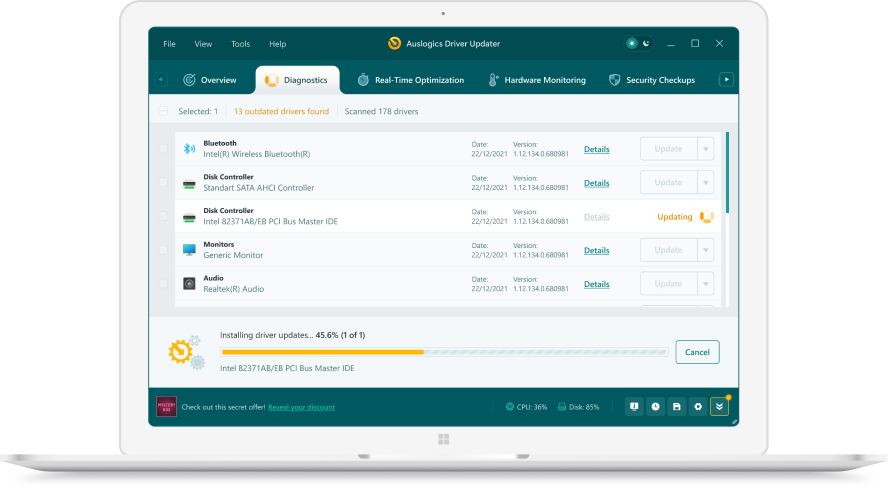 1. Scan. Download the free version and run a scan.
 2. Review. See each old or missing driver with its newer version.
 3. Update. Update one driver free, or all at once with Pro.

Update this driver automatically
Finds and updates this driver and every other outdated driver on your PC.
Auslogics Driver Updater · Free scan · Windows 11, 10, 8, 7 · Backup before every change
What causes Code 39?
Microsoft Learn gives four common reasons a driver fails to load with this code:
- The driver file links to another file that is not on the PC.
- The driver uses a Windows function that this version of Windows does not have.
- Hypervisor-Protected Code Integrity, shown as Memory Integrity in Windows Security, is on and the driver is not compatible with it.
- The driver file or one of its dependencies is corrupted, or reading it failed.
Three of these four are fixed by a newer driver built for your version of Windows. For the Memory Integrity case, our guide on a driver that cannot load on this device covers Microsoft’s steps and the risk of turning the feature off.
Code 39 on a CD or DVD drive
Microsoft has a separate article for optical drives that disappear from File Explorer or show a yellow warning in Device Manager. It names Code 39 alongside Codes 19, 31, 32 and 41. It says the problem can start after upgrading Windows, installing or removing CD or DVD recording programs, or uninstalling Microsoft Digital Image. Microsoft’s methods, in order, are BIOS and chipset checks, reinstalling the drive driver, reinstalling the IDE/ATAPI drivers, then the registry fix.
The UpperFilters and LowerFilters fix
Microsoft documents this registry change for CD and DVD drives only. Microsoft warns that serious problems might occur if you modify the registry incorrectly, so back it up first.
- Sign in as an administrator.
- Back up the registry, or create a restore point in System Protection.
- Press Windows key + R, type regedit and press Enter.
- Go to HKEY_LOCAL_MACHINE\SYSTEM\CurrentControlSet\Control\Class{4D36E965-E325-11CE-BFC1-08002BE10318}.
- In the right pane, select UpperFilters, then Edit, Delete, and confirm.
- Do the same for LowerFilters if it is there.
- Close Registry Editor and restart.
The class key in step 4 belongs to CD and DVD drives. Do not remove values from any other class key. If a disc burning app stops working afterward, reinstall it or install its latest version.
Questions
Is Code 39 a sign of a bad drive?
Not usually. The message points to driver files, and Microsoft's fixes are reinstalls. A drive that stays missing after every method may need checking by its maker.
Can Memory Integrity cause Code 39?
It can. Microsoft Learn lists a driver that is not compatible with Hypervisor-Protected Code Integrity as one reason for Code 39. Look for an updated driver before changing any security setting.
Will deleting UpperFilters break my burning software?
It may. Microsoft warns that CD or DVD recording apps might not work correctly afterward, and suggests reinstalling the app or getting an updated version.
Does the registry fix work for other devices?
Microsoft documents it for the CD and DVD drive class key only. Do not delete filter values under other device class keys.