Update NVIDIA drivers
To update an NVIDIA driver, open the NVIDIA app, go to Drivers, select Download, then Install. Without the app, use the manual driver search at nvidia.com/drivers, choose your GPU and Windows version, and run the installer. Laptop owners should check the PC maker's driver first.
Checked November 3, 2026 against the manufacturer's own pages.
The short version
What to install and where it comes from. Every link goes to the manufacturer or Microsoft, never to a copy.
Official files only, nothing bundled
Step by step
Install or open the NVIDIA app
Download the NVIDIA app from nvidia.com/en-us/software/nvidia-app and sign in only if you want optional features. It reads your GeForce card automatically.
Open the Drivers page
Select Drivers in the left menu. The newest release appears at the top with a list of what it fixes and which games it supports.
Choose Game Ready or Studio
Use the drop-down at the top right to switch between the two driver types. Leave it on Game Ready if you mostly play, or choose Studio for creative software.
Download, then Install
Select Download and wait, then select Install. Express keeps your settings; the screen may go black for a moment while the driver loads.
Manual route if the app fails
Go to nvidia.com/drivers, fill in Product Category, Product Series, Product and Operating System, set Download Type, select Find Drivers and run the file you get.
Restart and check
Restart Windows, then open Device Manager, Display adapters, your NVIDIA card, Properties, Driver tab to confirm the new version.
Faster option: update drivers automatically
The steps above fix this one device. If several drivers are old, a driver updater finds and installs them all in one go, and backs up the current ones first.
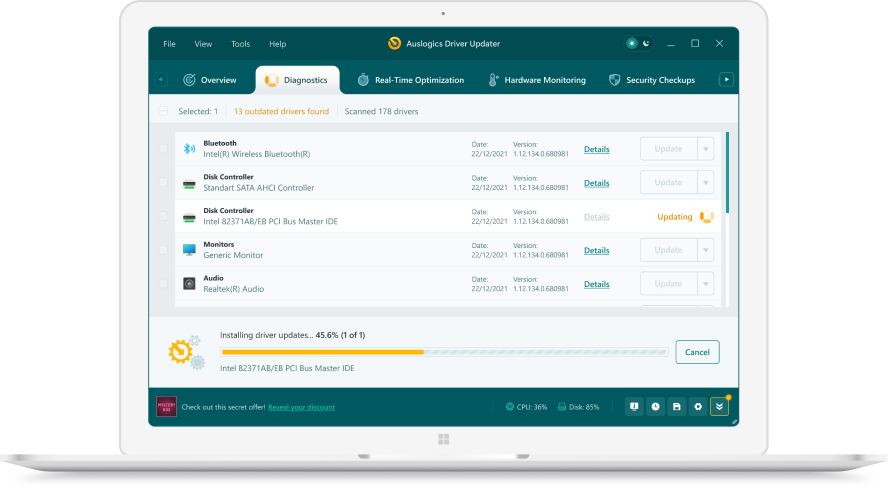 1. Scan. Download the free version and run a scan.
 2. Review. See each old or missing driver with its newer version.
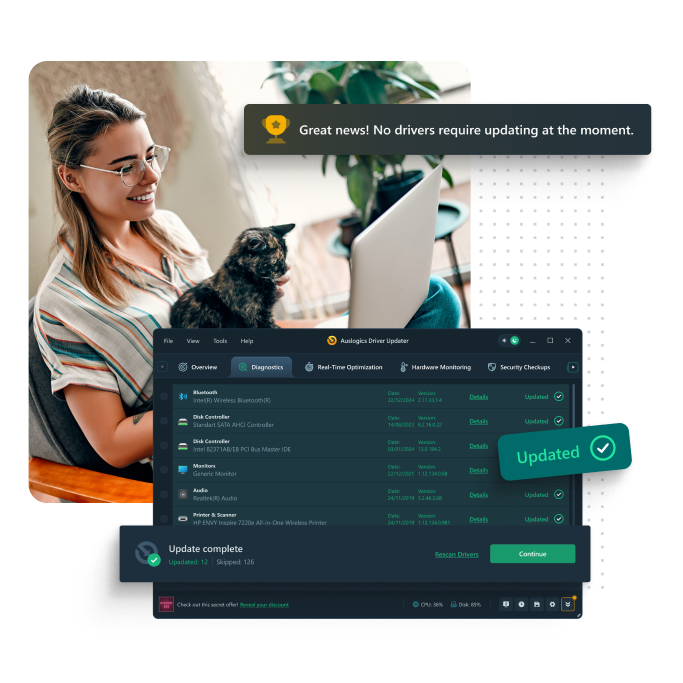 3. Update. Update one driver free, or all at once with Pro.

Update this driver automatically
Finds and updates this driver and every other outdated driver on your PC.
Auslogics Driver Updater · Free scan · Windows 11, 10, 8, 7 · Backup before every change
Game Ready or Studio: what NVIDIA says
NVIDIA describes Game Ready drivers as built to give the best possible experience in all major games, tested from early access through each DLC. Studio drivers target key creative apps and are tested across the top creative software. Both types are WHQL certified and install on the same GeForce cards, so you can switch at any time from the drop-down in the app or the Download Type field in the manual search. Pick by the work you do most, not by which number is higher.
How to roll back NVIDIA drivers
You have three routes, in order of ease:
| Route | Where | Works when |
|---|---|---|
| NVIDIA app | Drivers, three dots, Reinstall | The older version was installed by the app |
| Device Manager | Display adapters, Properties, Driver, Roll Back Driver | You installed the new driver over the old one |
| Manual reinstall | nvidia.com/drivers, download the version you want | The two routes above are not available |
After any rollback, Windows Update or the app can offer the newer release again. Turn off automatic downloads in the app and see our roll back guide for how Windows can be told to wait.
What a clean installation removes
A normal install keeps profiles and per-game settings. NVIDIA’s support guidance for failed installs is to run the installer, choose Custom (Advanced) and enable Perform a clean installation, which resets those settings and replaces the driver files. Close GPU monitoring tools and games first. Expect some games to stutter briefly on first launch while their shader cache is rebuilt.
Questions
How do I roll back an NVIDIA driver?
In the NVIDIA app, open Drivers, select the three dots and choose Reinstall to go back to a version the app installed earlier. You can also use Device Manager, Display adapters, your card, Properties, Driver, Roll Back Driver. NVIDIA notes that rollback is not possible if you uninstalled the old driver before installing the new one.
Do I need to uninstall the old NVIDIA driver first?
No. NVIDIA's driver help says the recommended method is to install the new driver over the old one, which keeps your NVIDIA Control Panel settings and profiles.
When should I use a clean installation?
Use it when an update fails or settings behave oddly. Run the installer from nvidia.com, choose Custom (Advanced), tick Perform a clean installation and restart afterwards. Your NVIDIA settings return to defaults.
Why does Windows Update offer a different NVIDIA driver?
Windows Update ships versions that NVIDIA or your PC maker submitted to Microsoft, which can lag behind nvidia.com. Installing the newer release from NVIDIA is fine; Windows normally keeps the newer one.