Fix NVIDIA driver not installing
When the NVIDIA installer fails, restart, close every app, then run the downloaded driver as administrator and choose Custom (Advanced) with Perform a clean installation ticked. Get the package from NVIDIA's driver search page for your exact GPU and Windows version, or from your laptop maker's support page.
Checked November 3, 2026 against the manufacturer's own pages.
The short version
What to install and where it comes from. Every link goes to the manufacturer or Microsoft, never to a copy.
Official files only, nothing bundled
Step by step
Restart and try once more
NVIDIA's first advice for a failed install is a plain reboot followed by a second attempt. If a driver was already present, uninstall the old version from Settings, Apps, Installed apps, reboot, and run the installer again.
Let Windows Update finish first
On a newly set up PC, Windows Update often fetches a graphics driver silently. NVIDIA says a manual install started during that time fails at once. Wait about 15 minutes after first sign-in, restart, and then check whether a driver is already in place before installing yours.
Download the full package by hand
If the NVIDIA app or GeForce Experience reports that the download failed, open NVIDIA's driver search page, pick your product series, product and operating system, and save the installer file. A broken download is a frequent cause of extraction errors, so download it again if the installer complains about data.
Close apps that hook into the GPU
Quit overlays, video players, browsers and GPU tuning or monitoring tools before you start. NVIDIA also says you may pause antivirus software that scans aggressively in real time. Microsoft Defender can stay on.
Run a clean installation
Right-click the installer and choose Run as administrator, accept the prompt and keep the default extraction folder. Select NVIDIA Graphics Driver, choose Custom (Advanced), tick Perform a clean installation and continue. Restart when it finishes.
Stop leftover NVIDIA services
If it still fails, press Windows key and R, type services.msc and stop every service whose name starts with NVIDIA. In Task Manager, end any process starting with nv or NVIDIA, then run the installer again.
Faster option: update drivers automatically
The steps above fix this one device. If several drivers are old, a driver updater finds and installs them all in one go, and backs up the current ones first.
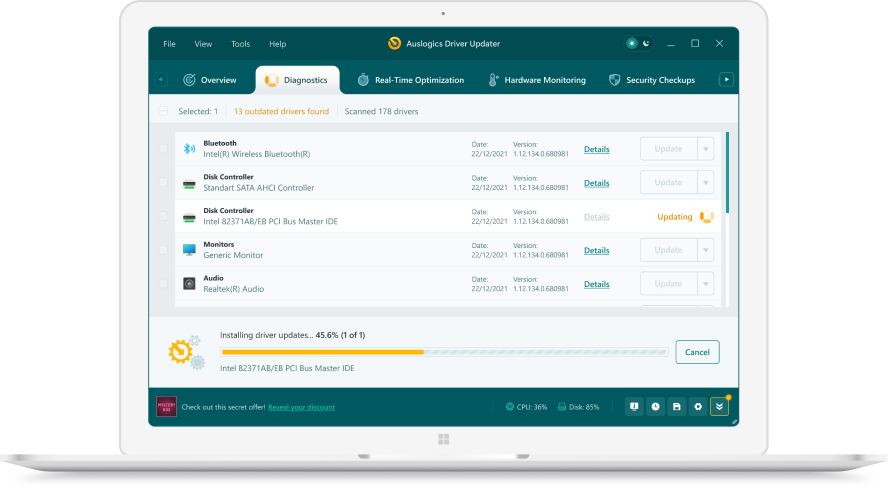 1. Scan. Download the free version and run a scan.
 2. Review. See each old or missing driver with its newer version.
 3. Update. Update one driver free, or all at once with Pro.

Update this driver automatically
Finds and updates this driver and every other outdated driver on your PC.
Auslogics Driver Updater · Free scan · Windows 11, 10, 8, 7 · Backup before every change
What do the NVIDIA installer errors mean?
| Message | Most likely cause | First thing to try |
|---|---|---|
| NVIDIA Installer failed | Locked files, a pending reboot or a running NVIDIA service | Restart, then a clean installation as administrator |
| Installation can’t continue | Wrong package for the GPU or Windows, or an old NVIDIA app | Download again for the exact product and OS |
| Driver download failed | The NVIDIA app or GeForce Experience could not fetch the file | Save the installer from NVIDIA’s driver page instead |
| Not compatible with this version of Windows | Package and Windows edition do not match | Pick the right OS in NVIDIA’s search, or use the laptop maker’s driver |
Laptops: why the NVIDIA package can refuse to install
Many gaming and business laptops ship with a graphics driver that the laptop maker has adapted for that model, often because the NVIDIA chip works together with the built-in Intel or AMD graphics. Microsoft’s own order applies here: Windows Update first, then the PC maker’s support page, then the chip maker. If NVIDIA’s generic package stops with an error on a laptop, install the graphics driver listed for your exact model on the maker’s site, then try NVIDIA’s newer release later.
When to ask NVIDIA for help
If every step fails, NVIDIA support asks for installer logs, and it publishes a separate guide on turning logging on. Note the exact message and the driver version you tried before you contact them.
Questions
Why does it say this NVIDIA graphics driver is not compatible with this version of Windows?
The package you downloaded does not match your Windows edition or your graphics hardware. Search again on NVIDIA's page with the exact GPU model and your Windows version. On a laptop, use the driver from the laptop maker if the generic one refuses to install.
Why is the installer stuck on preparing to install?
Another installation is usually still running, most often a driver that Windows Update is placing in the background. Leave it for a while, restart, then start the NVIDIA installer again with other apps closed.
Does a clean installation delete my game settings?
It resets NVIDIA driver settings such as 3D profiles back to their defaults. Your games and their saves are not touched.
Windows Update keeps replacing my NVIDIA driver. What should I do?
Install the NVIDIA package after Windows Update has finished its own driver work and you have restarted. If Windows later offers an older display driver under Optional updates, you do not have to install it.