Fix camera not working in Windows
First check the physical privacy shutter or the camera key, often an F key used with Fn. Then open Settings, Privacy & security, Camera and turn on Camera access, Let apps access your camera and Let desktop apps access your camera. If it still fails, run the Camera troubleshooter and reinstall the camera driver in Device Manager, as in Microsoft's Camera doesn't work in Windows guide.
Checked November 3, 2026 against the manufacturer's own pages.
The short version
What to install and where it comes from. Every link goes to the manufacturer or Microsoft, never to a copy.
Official files only, nothing bundled
Step by step
Open the shutter or press the camera key
Many laptops have a sliding cover over the lens, a switch on the side, or a key with a camera symbol that works alone or with Fn. Uncover the lens or press the key, then test again. For a USB webcam, reconnect it to another port.
Allow camera access
Go to Settings, Privacy & security, Camera. Turn on Camera access, Let apps access your camera and Let desktop apps access your camera. Browsers and most video call programs are desktop apps. If Camera access is greyed out, an administrator has to switch it on.
Test in the Camera app
Open Start and search for Camera. If the picture works there but not in a call app, the camera is fine and that app's own camera choice or permission is the problem.
Run the Camera troubleshooter
Go to Settings, System, Troubleshoot, Other troubleshooters and press Run next to Camera, or start it from the Get Help app. Apply the fixes it offers.
Install updates and restart
Open Settings, Windows Update, Check for updates, then Advanced options, Optional updates for any camera driver. Restart from Start, Power, Restart. Sleep or closing the lid is not a restart.
Repair the driver in Device Manager
Find the camera under Cameras, Imaging devices or Sound, video and game controllers. If it is disabled, choose Enable device. Otherwise use Roll Back Driver, or Uninstall Device with Attempt to remove the driver for this device ticked, then Action, Scan for hardware changes and restart.
Faster option: update drivers automatically
The steps above fix this one device. If several drivers are old, a driver updater finds and installs them all in one go, and backs up the current ones first.
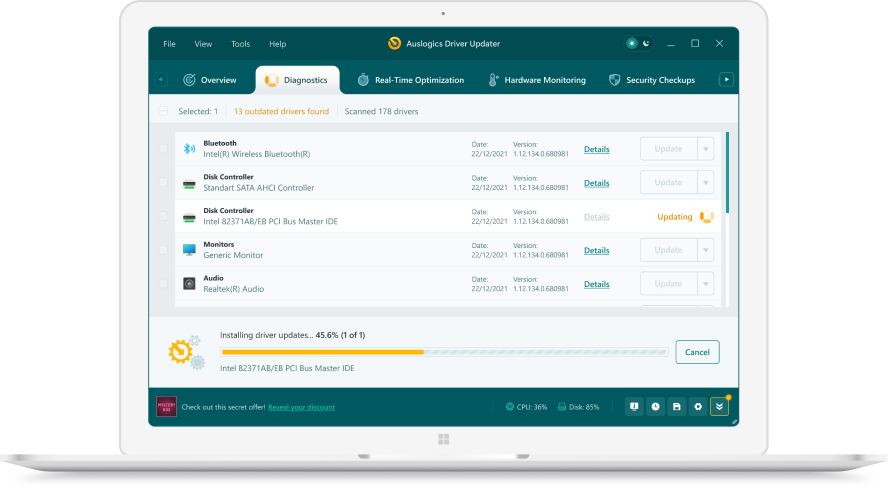 1. Scan. Download the free version and run a scan.
 2. Review. See each old or missing driver with its newer version.
 3. Update. Update one driver free, or all at once with Pro.

Update this driver automatically
Finds and updates this driver and every other outdated driver on your PC.
Auslogics Driver Updater · Free scan · Windows 11, 10, 8, 7 · Backup before every change
Cameras or Imaging devices: where does the webcam show up?
Device Manager can list a webcam in one of three places. On most current laptops it is under Cameras. Some cameras and drivers place it under Imaging devices, and a few appear under Sound, video and game controllers. Expand all three before you decide the camera is missing. If you see an entry with a yellow warning sign, open its Properties to read the Device status message and code.
Camera error codes Microsoft lists
| Code | Meaning | What to do |
|---|---|---|
| 0xA00F4244 | Camera not detected | Check the switch or shutter, then scan for hardware changes |
| 0xA00F4243 | Camera in use by another app | Close other video apps |
| 0x80070005 | Access denied | Turn on the Privacy & security camera toggles |
| 0xA00F4292 | Blocked by policy or an administrator | Ask your IT admin |
| 0xA00F4294 | Video failed to start | Update or reinstall the camera driver |
Laptop cameras and maker drivers
Built-in laptop cameras often use a driver that the laptop maker publishes for that model, especially infrared cameras used for Windows Hello. If Windows Update offers nothing and reinstalling does not help, download the camera driver for your exact model from the maker’s support site. On Windows 11 version 24H2 and later, Microsoft also offers a Basic camera mode in Camera settings for cameras blocked by a maker’s add-on or hardware acceleration.
Questions
Why is my laptop camera missing from Device Manager?
A camera key or switch that cuts power can hide it completely. Turn the camera on, then use Action, Scan for hardware changes. If it still does not appear, check the laptop maker's support page for a camera driver or a BIOS setting that disables it.
What does error 0xA00F4243 mean?
Microsoft lists 0xA00F4243 as another app or process already using the camera. Close video calls, browser tabs and recording apps, then try again.
Can antivirus software block the camera?
Yes. Microsoft lists security software locking the camera as error 0xA00F4246. Look in your security app's privacy or webcam protection settings and allow the app you want to use.
Does the generic USB Video Device driver work?
For most webcams, yes. In Update driver choose Browse my computer for drivers, Let me pick from a list, then USB Video Device. Microsoft warns that Windows Hello face sign-in may stop working with it.
Is the fix different on Windows 10?
The steps are the same, but the privacy page is Settings, Privacy, Camera, and the troubleshooter sits under Settings, Update & Security, Troubleshoot. The Device Manager uninstall box reads Delete the driver software for this device.