Fix an AMD driver timeout
An AMD driver timeout means the Radeon graphics driver stopped responding and Windows reset it. Undo any GPU overclock or tuning, then reinstall the driver from AMD with the Factory Reset option, or run the AMD Cleanup Utility first. AMD's Troubleshooting Tips article and its driver release notes list the known causes and fixes.
Checked November 3, 2026 against the manufacturer's own pages.
The short version
What to install and where it comes from. Every link goes to the manufacturer or Microsoft, never to a copy.
Official files only, nothing bundled
Step by step
Put the GPU back to stock settings
In the tuning section of AMD Software, reset any custom GPU clock, voltage, fan or power changes. Close third party monitoring and overclocking tools too. AMD lists unstable overclocking and overheating as a cause of TDRs.
Read the release notes for your driver
Open AMD Software, check the installed version, and look up its release notes on amd.com. The Known Issues list names games, overlays and settings that trigger timeouts on specific Radeon series, often with a workaround.
Update Windows and the chipset driver
Run Settings, Windows Update, Check for updates. Then install the latest chipset driver for your motherboard or PC. AMD puts both in its standard system setup before any deeper troubleshooting.
Clean install the Radeon driver
Download the current driver from AMD's drivers page. During setup choose the Factory Reset option. Or run the AMD Cleanup Utility first, let it restart into Safe Mode, then install the new package. Close or finish Windows Update before you run the utility.
Go back one version if needed
If the timeouts began with a new driver and AMD has no fix yet, AMD advises returning to the last driver version where the problem did not happen. AMD recommends the Cleanup Utility when downgrading.
Check power, cooling and the card
Make sure the PCIe power cables to the card are fully seated, the power supply meets the system's needs and dust is not blocking airflow. Remove any PCIe riser cable and plug the card straight into the motherboard as a test.
Faster option: update drivers automatically
The steps above fix this one device. If several drivers are old, a driver updater finds and installs them all in one go, and backs up the current ones first.
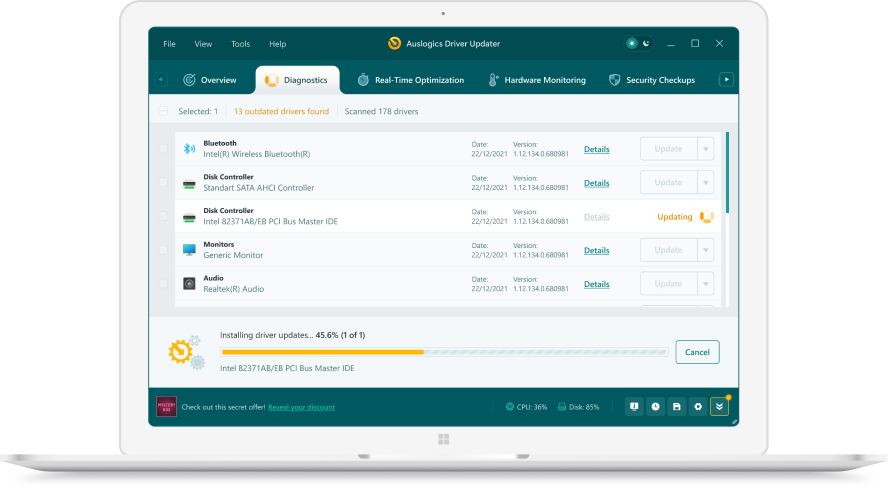 1. Scan. Download the free version and run a scan.
 2. Review. See each old or missing driver with its newer version.
 3. Update. Update one driver free, or all at once with Pro.

Update this driver automatically
Finds and updates this driver and every other outdated driver on your PC.
Auslogics Driver Updater · Free scan · Windows 11, 10, 8, 7 · Backup before every change
What does an AMD driver timeout mean?
Windows watches the graphics card. If the card stops answering for too long, Windows resets the driver instead of letting the whole PC lock up. This is called timeout detection and recovery, or TDR. AMD Software then shows a driver timeout notice. The screen can go black for a moment and the game or video that was running may close.
What causes it, according to AMD
AMD’s Troubleshooting Tips article groups stability problems, TDRs included, under six causes:
| Cause AMD lists | What to check |
|---|---|
| Outdated or wrongly set BIOS | Latest BIOS, factory default settings |
| Unsupported memory setup | RAM on the motherboard’s supported list, in the right slots |
| Unstable overclock or overheating | Stock clocks, clean fans and heatsinks |
| Old or damaged OS and drivers | Windows Update, chipset driver, clean graphics install |
| Conflicting apps and tools | Overlays, monitoring and tuning apps closed |
| Faulty or unsupported hardware | Power supply, PCIe cables, a swap test |
Work down the list in that order and test after each change, so you know which one fixed it.
Windows 11 notes
On Windows 11, also try turning Hardware-accelerated GPU scheduling off in the graphics settings under Settings, System, Display, then restart. AMD lists this setting in a current known issue for video playback on some RX 7000 cards.
Questions
Is AMD driver timeout a hardware problem?
Usually not. Tuning settings, a driver bug in one game or a damaged driver install are the common causes. Power delivery, heat and a faulty card are possible, so check them if a clean install on stock settings does not help.
Does it happen on Windows 11 only?
No. It appears on Windows 10 and Windows 11. Some known issues are tied to Windows 11 settings, such as Hardware-Accelerated GPU Scheduling during video playback on some Radeon RX 7000 cards in recent release notes.
Can the AMD overlay cause driver timeouts?
AMD's 26.10.2 notes list timeouts or crashes when other overlays such as Xbox Game Bar are opened or closed while the Performance Metrics Overlay is on. Turning that overlay off before opening others is AMD's workaround.
Should I install the driver from AMD or from my laptop maker?
On laptops and branded desktops, AMD recommends the maker's driver, because it is customized and validated for that system. Desktop graphics cards can take the driver straight from AMD.