Fix screen flickering in Windows
Open Task Manager with Ctrl+Shift+Esc and watch it. If Task Manager flickers with the rest of the screen, the display driver is the likely cause: roll it back, update it or reinstall it. If Task Manager stays steady, an app is causing the flicker. Microsoft's Troubleshoot screen flickering in Windows page sets out both paths.
Checked November 3, 2026 against the manufacturer's own pages.
The short version
What to install and where it comes from. Every link goes to the manufacturer or Microsoft, never to a copy.
Official files only, nothing bundled
Step by step
Run the Task Manager test
Press Ctrl+Alt+Delete and choose Task Manager, or press Ctrl+Shift+Esc. Watch it for a minute. A flickering Task Manager points to the display driver. A steady Task Manager over a flickering background points to an app.
Roll back the display driver
If flicker started after Windows Update changed something, open Device Manager, expand Display adapters, right-click the adapter and choose Properties. On the Driver tab select Roll Back Driver, then Yes, and restart. You need an administrator account for this.
Update or reinstall the driver
In Device Manager, right-click the adapter and choose Update driver. If that changes nothing, open Properties, Driver, Uninstall Device, tick Attempt to remove the driver for this device and restart so Windows installs a fresh copy. Your PC maker or the graphics chip maker may have a newer version.
Fix the app that flickers
When the Task Manager test blames an app, update it from Microsoft Store or its maker. If that does not help, go to Settings, Apps, Installed apps and uninstall recently added apps one at a time, restarting after each, until the flicker stops.
Set the right refresh rate
Go to Settings, System, Display, Advanced display, choose the monitor if you have more than one, and pick a refresh rate from the list. Rates with an asterisk change the resolution, so try a plain value the monitor supports.
Check the cable and the monitor
Reseat both ends of the HDMI or DisplayPort cable, try another cable or port, and test the monitor with a different PC if you can. Flicker that also shows on the monitor's own menu is a monitor or cable fault, not Windows.
Faster option: update drivers automatically
The steps above fix this one device. If several drivers are old, a driver updater finds and installs them all in one go, and backs up the current ones first.
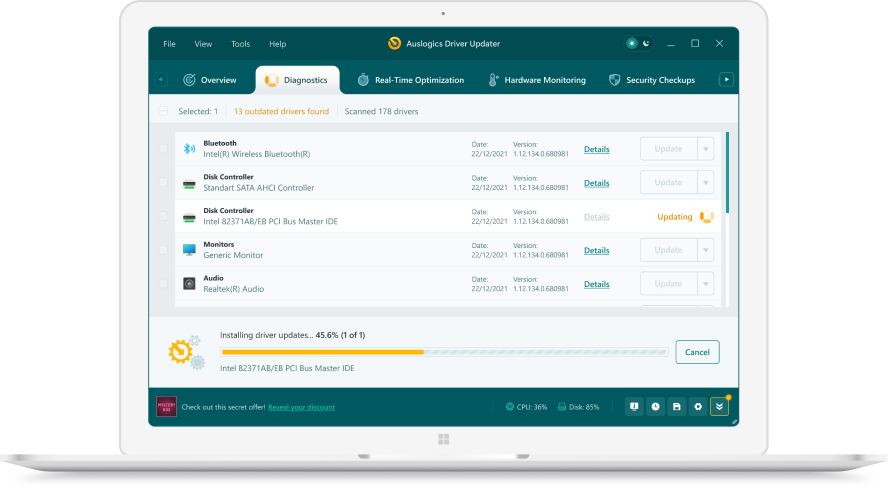 1. Scan. Download the free version and run a scan.
 2. Review. See each old or missing driver with its newer version.
 3. Update. Update one driver free, or all at once with Pro.

Update this driver automatically
Finds and updates this driver and every other outdated driver on your PC.
Auslogics Driver Updater · Free scan · Windows 11, 10, 8, 7 · Backup before every change
Why the Task Manager test works
Task Manager is drawn by Windows itself, not by a third party program. If even Task Manager flickers, every pixel on the screen is affected, so the fault sits below the apps, in the display driver or the hardware. If Task Manager stays solid while windows behind it flicker, Windows and the driver are drawing fine and one program is causing trouble. Microsoft builds its whole flickering guide around this split.
Screen flickering in Windows 10
The same test and fixes work on Windows 10, with a few labels that differ:
| Task | Windows 11 | Windows 10 |
|---|---|---|
| Uninstall box in Device Manager | Attempt to remove the driver for this device | Delete the driver software for this device |
| Remove an app | Settings, Apps, Installed apps | Settings, Apps, Apps & features |
| Refresh rate | Settings, System, Display, Advanced display | Same path; no Dynamic refresh rate option |
Microsoft ended support for Windows 10 on October 14, 2025, so new display driver fixes now arrive mainly for Windows 11.
Laptop screens that flicker
On a laptop, flicker that changes when you tilt the lid or press on the frame points to the internal screen cable, which is a repair job. For flicker that the Task Manager test blames on the driver, install the graphics driver for your exact model from the laptop maker’s support site, since it is set up for that panel.
Questions
Why did my screen start flickering after a Windows update?
An update can install a different display driver. Microsoft's first fix for that case is Roll Back Driver in Device Manager. If the button is grey, there is no older driver stored, so install one from your PC maker instead.
Can an app make the whole screen flicker?
Yes. Microsoft treats an incompatible app as one of the two main causes. The Task Manager test separates the two, because Task Manager keeps drawing normally when only an app is at fault.
What if the uninstall check box is missing?
Microsoft says to start the PC in Safe Mode first, then uninstall the display adapter from Device Manager there.
Does a higher refresh rate cause flicker?
It can when the cable or port cannot carry that rate. Drop to a lower rate in Advanced display to test, and use the cable that came with a high refresh monitor.