Toshiba e-STUDIO drivers
Get the Toshiba Universal Printer 2 driver from business.toshiba.com: enter your e-STUDIO model number under Support & Drivers, open its Downloads section, then e-Bridge Current Drivers, and download Windows e-Bridge Universal 2 PCL/PS 32/64 Bit Driver. Use the Full Installer if you also want the scan utilities.
Checked November 3, 2026 against the manufacturer's own pages.
The short version
What to install and where it comes from. Every link goes to the manufacturer or Microsoft, never to a copy.
Official files only, nothing bundled
Step by step
Read the e-STUDIO model number
Toshiba copiers show it on the front, for example e-STUDIO3015AC or e-STUDIO2309A. The letters at the end matter, because AC color models and A mono models have separate pages.
Search on Toshiba Support & Drivers
Go to business.toshiba.com, open Support & Drivers and type the model into Please enter model number, then click Search. You can also choose or select a product by category, such as Office MFPs.
Open the Downloads section
The model page opens with a Downloads area split into groups like CD/DVD ISO Files, e-BRIDGE Full Installer, e-Bridge Current Drivers, Utilities and Operators Manuals.
Pick the Universal 2 driver
Under e-Bridge Current Drivers, download Windows e-Bridge Universal 2 PCL/PS 32/64 Bit Driver. One package covers 32-bit and 64-bit Windows. A Windows e-Bridge Universal PS3 driver is listed next to it for PostScript-only setups.
Install and add the printer
Unzip the file, then add the copier in Settings, Bluetooth & devices, Printers & scanners. Choose Add manually if Windows does not see it, and point it to the copier's IP address and the driver folder you unzipped.
Want scan tools too?
Use the Full Installer under e-BRIDGE Full Installer instead. The Utilities group also lists separate TWAIN, WIA and Remote Scan utilities if you only need one.
Faster option: update drivers automatically
The steps above fix this one device. If several drivers are old, a driver updater finds and installs them all in one go, and backs up the current ones first.
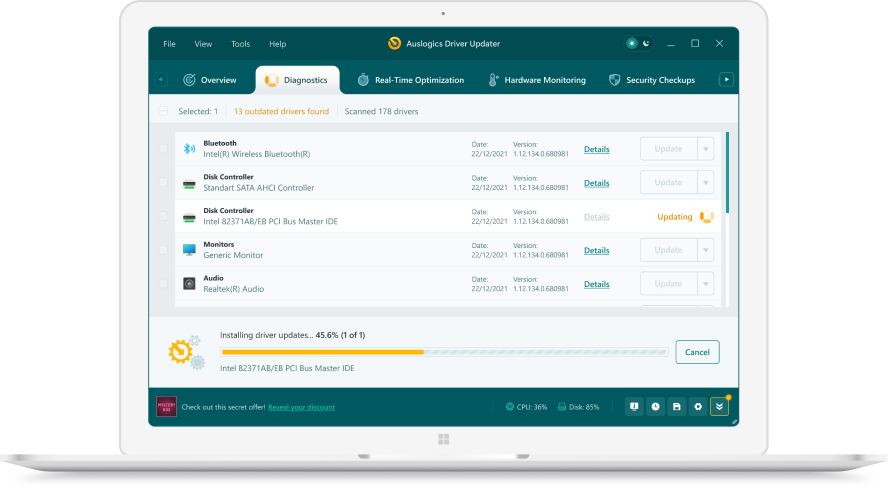 1. Scan. Download the free version and run a scan.
 2. Review. See each old or missing driver with its newer version.
 3. Update. Update one driver free, or all at once with Pro.

Update this driver automatically
Finds and updates this driver and every other outdated driver on your PC.
Auslogics Driver Updater · Free scan · Windows 11, 10, 8, 7 · Backup before every change
Which Toshiba site is official in the US?
For e-STUDIO copiers and multifunction printers sold in the US, the official source is Toshiba America Business Solutions, Inc., at business.toshiba.com. Its Support & Drivers page carries drivers, manuals, safety data sheets and interactive tutorials for each model. The older tbs.toshiba.com support pages carry the same company name.
Toshiba laptop drivers are a separate topic with their own support site, so they are covered on a different page of this guide.
What sits in an e-STUDIO Downloads list
The groups on a typical model page, using the e-STUDIO3015AC as the example:
| Group on Toshiba’s page | What it holds |
|---|---|
| CD/DVD ISO Files | Client Utilities and User Documentation disc image |
| e-BRIDGE Full Installer | One installer for drivers and client software |
| e-Bridge Current Drivers | Windows Universal 2 and PS3 drivers, Mac drivers, Linux and Unix filters |
| Utilities | Docmon, File Downloader, Remote Scan, TWAIN and WIA utilities |
| Prior Version Driver | Earlier Universal 2 PCL/PS, PS and XPS builds |
Toshiba barcode printers are separate
Toshiba Tec’s global site also publishes a Printer Driver for Windows, but Toshiba says that driver is only for use with Toshiba barcode printers. It will not drive an e-STUDIO copier. Label and receipt printers sold in the US are listed under their own product category on business.toshiba.com.
Questions
What is the Toshiba Universal Printer 2 driver?
It is the Windows driver Toshiba lists as Windows e-Bridge Universal 2 PCL/PS 32/64 Bit Driver on each e-STUDIO downloads page. One package handles both PCL and PostScript printing on 32-bit and 64-bit Windows.
Is there a Toshiba e-STUDIO driver for Mac?
Yes, on many models. The e-STUDIO3015AC page, for example, lists Mac drivers in duplex and single-sided versions under e-Bridge Current Drivers, along with Linux and CUPS filters.
My model says Discontinued. Can I still get drivers?
Yes. Toshiba marks older models as discontinued on their product page but keeps the Downloads section, including current and prior version drivers. The e-STUDIO3015AC is one example.
Where are older Toshiba e-STUDIO drivers?
Under e-Bridge Prior Version Drivers and Prior Version Driver on the model page. Older XPS versions of the Universal 2 driver appear there too. Use them only if the current driver causes a problem you need to work around.
Is Toshiba ready for Windows Protected Print?
Toshiba says compatibility varies by model and setup. It states that many of its devices support IPP and are being aligned with Microsoft's approach through Print Support Applications, and it offers a readiness checklist.