Ricoh printer driver
For most Ricoh printers and MFPs, install the PCL6 Driver for Universal Print, one driver that works across many Ricoh models. Get it from Ricoh's Universal Print Driver download page or your model's page on support.ricoh.com, under Microsoft Windows 11 (64-bit). Device Software Manager can find the printer and install the right driver for you.
Checked November 3, 2026 against the manufacturer's own pages.
Ricoh drivers by product line
| Product line | Type | What to know | Open |
|---|---|---|---|
| IM C series | Color multifunction printers | The IM C3010/C3510 page lists both PCL6 and PS Drivers for Universal Print for Windows 11, plus scan and fax drivers. | Drivers on support.ricoh.com |
| M C series | Compact color MFPs | For the M C2510, Ricoh offers only the universal PCL6 driver on Windows 11. | Drivers on support.ricoh.com |
| P series | Black and white printers | The P 501/502 list includes PCL 6, PCL 5e and PostScript3 drivers next to the universal ones. | Drivers on support.ricoh.com |
| P C series | Color printers | The P C600 page adds a Generic PCL5 Driver and ICM color files for Windows 11. | Drivers on support.ricoh.com |
| All models: universal driver | Universal Print Driver page | Ricoh's own page for the universal driver, with a Change OS link and driver language choice. | Drivers on support.ricoh.com |
Each link opens the maker's own support page for that product line, checked on November 3, 2026. Pick your exact model there.

Not sure which driver fits your PC? Auslogics Driver Updater finds the right one and installs it for you.
Update drivers freeThe short version
What to install and where it comes from. Every link goes to the manufacturer or Microsoft, never to a copy.
Official files only, nothing bundled
Step by step
Find your model series
Ricoh names its machines by series, such as IM C3010, M C2510 or P 501. Read the name on the device, then search that name on support.ricoh.com or from Ricoh USA's support and download page.
Open Choose OS
On the model's Downloads page, Ricoh groups systems under Windows and Windows Server. Expand Windows and click Microsoft Windows 11 (64-bit), or the exact Windows 10 edition your PC runs.
Pick the PCL6 Driver for Universal Print
It sits under Printer Driver. Ricoh also lists a PCL 6 Driver built for that model on many pages; either works, but the universal one lets one driver serve several Ricoh devices in the same office.
Read the license, then install
Ricoh asks you to review its Software License Agreement before any download. Then run the downloaded file and follow its prompts to add the printer.
Or let Device Software Manager do it
Listed under Utility on the same page, it finds Ricoh MFPs and printers on your network or on USB, reads your Windows version, and downloads and installs the latest supported driver from Ricoh's server.
Add scanning and PC fax
For a multifunction model, download the Network TWAIN Driver or Network WIA Driver for scanning, and the Enhanced LAN Fax Driver to send faxes from Windows. These sit lower on the same list.
Faster option: update drivers automatically
The steps above fix this one device. If several drivers are old, a driver updater finds and installs them all in one go, and backs up the current ones first.
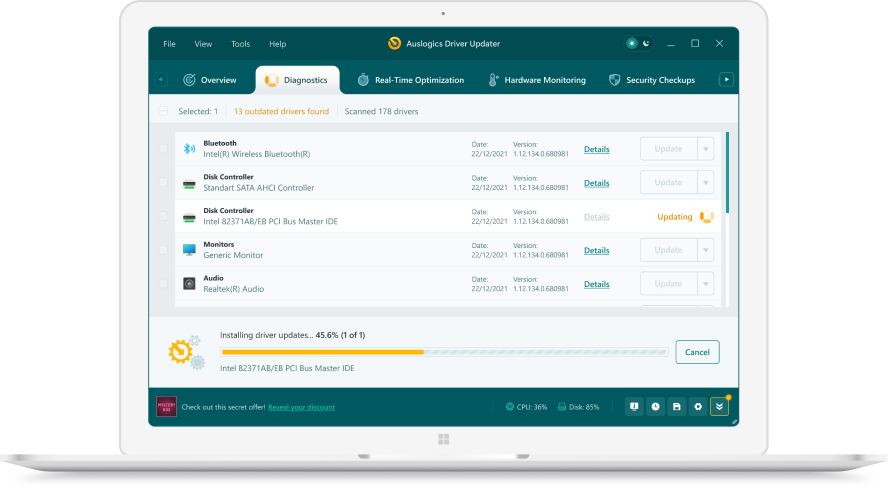 1. Scan. Download the free version and run a scan.
 2. Review. See each old or missing driver with its newer version.
 3. Update. Update one driver free, or all at once with Pro.
Update this driver automatically
Finds and updates this driver and every other outdated driver on your PC.
Auslogics Driver Updater · Free scan · Windows 11, 10, 8, 7 · Backup before every change
What the Windows 11 list on a Ricoh page contains
A Ricoh model page shows every file for the OS you pick, grouped by type. Here is what you will typically see under Microsoft Windows 11 (64-bit), taken from the IM C3010/C3510 page on 3 November 2026.
| Listed item | Type | What it is for |
|---|---|---|
| PCL6 Driver for Universal Print | Printer Driver | The usual choice for Windows printing, version 4.46.0.0 on that page |
| PS Driver for Universal Print | Printer Driver | PostScript printing |
| PCL 6 Driver | Printer Driver | Driver made for that model only |
| Device Software Manager | Utility | Finds the device and installs a driver automatically |
| Printer Diagnostic Tool | Utility | Ricoh’s tool for checking printing problems |
| Network TWAIN Driver, Network WIA Driver | Scanner Driver | Scanning into Windows apps |
| Enhanced LAN Fax Driver | Fax Utility | Sending a fax from the PC |
Each item has a History link, and Ricoh marks recent uploads with a New! label.
Ricoh’s security notice for Windows drivers
Ricoh’s universal driver page links to a notice before you install. It says Ricoh released an updated Universal Print Driver and a Security Updater program, and that all users should install the latest printer drivers where applicable. If you still use an affected driver made for one model, Ricoh says to run the security updater program, and to run it again whenever that driver is reinstalled. That is one more reason to replace a years-old Ricoh driver with the current universal one.
Tools for IT teams
Ricoh USA lists Printer Driver Packager NX for IT managers. It lets them customize driver settings and build a package to roll out to many PCs. Ricoh also says its software help line is 888-424-1573 if a driver install fails.
Questions
Is Ricoh's Universal Print driver the same as Microsoft Universal Print?
No. Ricoh's PCL6 Driver for Universal Print is a normal Windows driver that works with many Ricoh models. Microsoft Universal Print is a cloud print service. Ricoh lists a separate Microsoft Universal Print app for its Smart Operation Panel models.
PCL6 or PS Driver for Universal Print?
Ricoh offers both under the same Printer Driver heading. The PS Driver for Universal Print is the PostScript version, so use it when your software or IT team asks for PostScript; otherwise PCL6 is the common pick. On some models Ricoh also lists V4 builds of both.
What if my model only shows the universal driver?
That is normal for some models. On the M C2510 page, the only Windows 11 driver listed is the PCL6 Driver for Universal Print, with no separate model PCL 6 driver.
Can I print to a Ricoh without any driver?
Ricoh's Print Support Application is a driverless option for Windows 11 24H2 or later, 64-bit, and recent Windows 10. It installs by itself when Mopria adds a supported printer. On 27 October 2026 Ricoh's page said it was currently unavailable for installation.