Uninstall a driver in Windows
To uninstall a driver, open Device Manager, right-click the device, choose Uninstall device, tick Attempt to remove the driver for this device and select Uninstall. For graphics drivers that come with an app, such as NVIDIA or AMD Software, remove the package in Settings, Apps, Installed apps.
Checked November 3, 2026 against the manufacturer's own pages.
The short version
What to install and where it comes from. Every link goes to the manufacturer or Microsoft, never to a copy.
Official files only, nothing bundled
Step by step
Save a replacement driver first
Download the driver you plan to use next from the PC or device maker. For a network adapter this matters most, because you may lose internet access once it is gone.
Open Device Manager
Right-click Start and select Device Manager. Expand the category and find the device, for example Display adapters or Network adapters.
Choose Uninstall device
Right-click the device and select Uninstall device. A confirmation window opens.
Tick the remove driver check box
Select Attempt to remove the driver for this device so the driver package leaves the driver store too. Leave it clear if you only want Windows to redetect the device.
Remove any companion app
For NVIDIA or AMD graphics, open Settings, Apps, Installed apps, find the NVIDIA or AMD Software entries and select Uninstall.
Restart
Restart with Start, Power, Restart. Windows will try to load a driver again, so install your saved one if the device needs it.
Faster option: update drivers automatically
The steps above fix this one device. If several drivers are old, a driver updater finds and installs them all in one go, and backs up the current ones first.
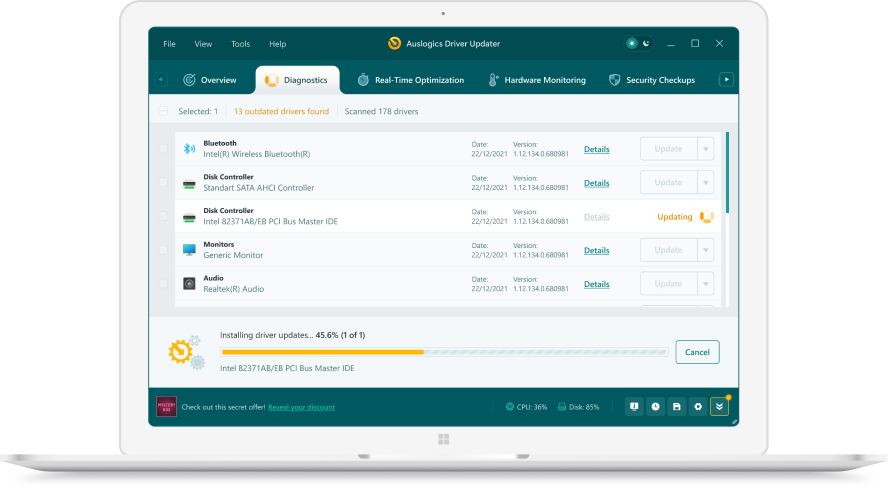 1. Scan. Download the free version and run a scan.
 2. Review. See each old or missing driver with its newer version.
 3. Update. Update one driver free, or all at once with Pro.

Update this driver automatically
Finds and updates this driver and every other outdated driver on your PC.
Auslogics Driver Updater · Free scan · Windows 11, 10, 8, 7 · Backup before every change
Uninstalling a driver with pnputil
Microsoft documents PnPUtil as a tool included in Windows, found in the system32 folder, that must be run from an administrator command prompt. It is aimed at advanced users and IT staff. The commands that matter for removing a driver were added in Windows 10, version 1607:
| Command | What it does |
|---|---|
pnputil /enum-drivers |
Lists third party driver packages with their published name, such as oem12.inf |
pnputil /delete-driver oem12.inf |
Deletes that package from the driver store |
pnputil /delete-driver oem12.inf /uninstall |
Also uninstalls it from any device using it |
pnputil /delete-driver oem12.inf /force |
Deletes it even when a device is still using it |
Check the provider and class in the list before deleting. The oem numbers differ on every PC, and /force can leave a device with no driver.
Graphics drivers: Device Manager is not enough on its own
NVIDIA and AMD install control apps and audio drivers alongside the display driver. AMD’s own uninstall guide uses Windows Installed apps: search for Installed apps, select AMD Software and choose Uninstall, then restart. If that fails or leaves an install error such as 1604, AMD documents its Cleanup Utility, which removes AMD graphics and audio software but leaves the chipset driver alone. Microsoft Basic Display Adapter takes over the screen until a new graphics driver is installed, so a lower resolution is normal at that point.
Drivers you should not uninstall
Avoid removing entries under System devices, Processors or the storage controller holding Windows. Without them the PC may not start. If a device in those categories misbehaves, update or roll back its driver instead.
Questions
How do I uninstall a graphics driver completely?
Remove it in Device Manager with the remove driver box ticked, then remove the NVIDIA or AMD software in Installed apps. AMD also offers AMD Cleanup Utility for installs that will not uninstall normally. NVIDIA's installer has a Perform a clean installation option for the next install.
Why did the driver come back after restart?
Windows reinstalls a driver for any device it detects, from the driver store or Windows Update. That is expected. Ticking the remove driver check box stops it from reusing the same stored copy.
What is the difference between Uninstall device and Disable device?
Disable device leaves the driver in place and turns the device off until you enable it. Uninstall device removes it from the list and, with the box ticked, deletes the driver package.
Can I uninstall a driver with a command?
Yes. pnputil /enum-drivers lists third party packages by their oem number, and pnputil /delete-driver oem12.inf /uninstall removes one from the store and from any device using it. Run Command Prompt as administrator.