Fix Reboot and Select Boot Device
Reboot and Select Proper Boot Device is a firmware message: the BIOS or UEFI found no drive it can start from. Unplug USB sticks, open the firmware setup, and put the Windows drive or Windows Boot Manager first in the boot order. If the drive is missing there, run your PC maker's pre-boot diagnostics, such as Dell SupportAssist or HP PC Hardware Diagnostics UEFI.
Checked November 3, 2026 against the manufacturer's own pages.
The short version
What to install and where it comes from. Every link goes to the manufacturer or Microsoft, never to a copy.
Official files only, nothing bundled
Step by step
Remove every removable disk
Shut the PC down and pull out USB flash drives, external disks, SD cards and any disc in the tray. Firmware often tries removable media before the internal drive, and a stick without a boot loader triggers this exact message. Start the PC again with nothing attached.
Open the firmware setup
Press the setup key as soon as the maker logo appears. Dell uses F2, HP uses F10 (or Esc, then F10), and many Lenovo ThinkPads use F1. Look on the main or storage page to see whether the internal SSD or hard drive is listed at all.
Fix the boot order
If the drive is listed, open the Boot, Boot Sequence or Boot Configuration page and move Windows Boot Manager, or the internal drive, to the top. Dell also suggests Load Defaults if settings were changed. Save and exit, usually with F10.
Match the boot mode to the install
Windows 11 installs use UEFI. If someone switched the PC to Legacy or CSM, the UEFI boot entry is ignored. Dell's guidance is Boot Mode set to UEFI, not Legacy, and SATA Operation set to AHCI, unless the drive was set up under RAID.
Run the maker's pre-boot diagnostics
On Dell, tap F12 and choose Diagnostics to run SupportAssist Pre-Boot System Assessment. On HP, tap Esc, press F2, then Symptom Tests and the hard disk test. Lenovo offers Lenovo Diagnostics as a bootable package. Note any error code for the maker's support team.
Repair the Windows boot files
If the drive passes but still will not start, boot from a Windows 11 USB installation drive or recovery drive. Microsoft lists recovery media as a way into the Windows Recovery Environment. Choose Troubleshoot, Advanced options, Startup Repair.
Faster option: update drivers automatically
The steps above fix this one device. If several drivers are old, a driver updater finds and installs them all in one go, and backs up the current ones first.
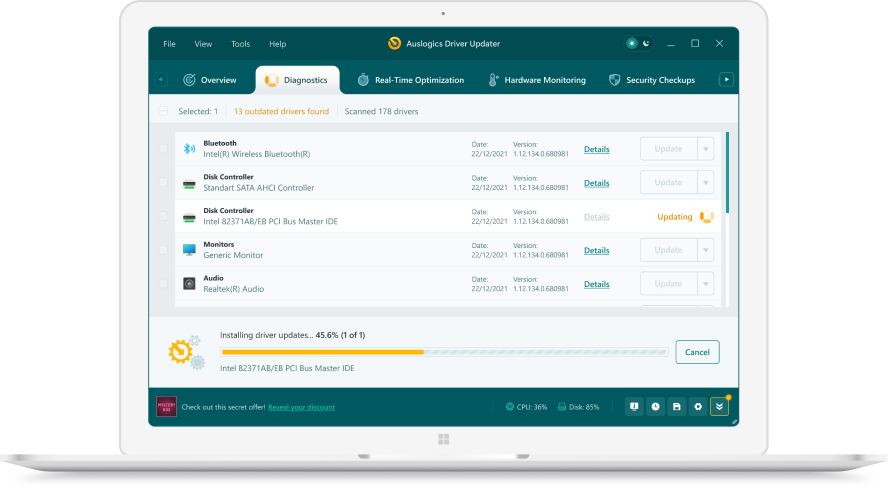 1. Scan. Download the free version and run a scan.
 2. Review. See each old or missing driver with its newer version.
 3. Update. Update one driver free, or all at once with Pro.

Update this driver automatically
Finds and updates this driver and every other outdated driver on your PC.
Auslogics Driver Updater · Free scan · Windows 11, 10, 8, 7 · Backup before every change
What does Reboot and Select Proper Boot Device mean?
The text comes from the PC firmware, and it is most often seen on desktops and self-built PCs. The full line usually reads Reboot and Select proper Boot device or Insert Boot Media in selected Boot device and press a key. Windows never got control, so no driver or Windows setting caused it directly. Other makers word the same failure differently, for example No Boot Device Found on Dell or Boot Device Not Found (3F0) on HP.
Is the drive detected in the BIOS?
This one check splits the problem in two. If the firmware lists the SSD or hard drive by model name, the hardware answers and the issue is the boot order, the boot mode or damaged boot files. If the drive is missing, look at the hardware. On a desktop, reseat the SATA data and power cables or the M.2 drive. On a laptop, HP tells users to restore BIOS defaults with F9 in setup and then test the drive. A drive that fails the maker’s test needs replacing, and the error code helps a warranty claim.
| What you see in setup | Likely cause | Next step |
|---|---|---|
| Drive listed, USB stick first | Boot order | Move Windows Boot Manager to the top |
| Drive listed, no Windows Boot Manager | Boot mode or boot files | Set UEFI, then Startup Repair |
| Drive missing | Cable, slot or failed drive | Maker diagnostics, then repair |
| New blank drive listed | No operating system | Install Windows on it |
UEFI, Legacy and SATA mode explained
UEFI firmware boots from an entry called Windows Boot Manager stored on a small EFI partition. Legacy or CSM boot looks for an old style master boot record instead, so switching modes hides the Windows entry. The SATA Operation setting (AHCI or RAID On on Dell systems) decides which storage driver Windows needs. Changing it after Windows is installed can stop startup with a blue screen instead, so put it back to its original value rather than experimenting.
Questions
Is Reboot and Select Proper Boot Device a Windows error?
No. The firmware shows it before Windows starts, which is why Windows tools cannot run yet. It means no listed device had a working boot loader, so the fix starts in the BIOS or UEFI setup.
Does it mean my hard drive is dead?
Not always. A wrong boot order or a USB stick left in causes it often. If the internal drive is missing from the firmware's own storage list, or fails the maker's diagnostics, then the drive or its connection is the likely cause.
Why did it appear after I installed a new SSD?
A new, empty SSD has no operating system, so the firmware cannot boot from it. Either install Windows on it, or set the old drive with Windows Boot Manager back to first place in the boot order.
Should I switch between UEFI and Legacy to test?
Only to put the setting back to what Windows was installed with. Dell notes that a system installed in UEFI mode recovers when the boot sequence returns to UEFI, while a Legacy install does not start under UEFI.