Fix a mic not working in Windows
When a mic stops working in Windows 11, the usual cause is blocked permission. Open Settings, Privacy & security, Microphone and turn on Microphone access, Let apps access your microphone and Let desktop apps access your microphone. Then pick the mic under Settings, System, Sound, Input and run Start test. Microsoft's Fix microphone problems page lists every step.
Checked November 3, 2026 against the manufacturer's own pages.
The short version
What to install and where it comes from. Every link goes to the manufacturer or Microsoft, never to a copy.
Official files only, nothing bundled
Step by step
Allow microphone access
Go to Start, Settings, Privacy & security, Microphone. Switch on Microphone access and Let apps access your microphone, then check the toggle next to the app you use. Switch on Let desktop apps access your microphone for programs such as Zoom.
Select the right input
Open Settings, System, Sound. Under Input, open Choose a device for speaking or recording and pick your headset, USB mic or the laptop's internal array.
Test and set the level
Select the arrow beside the chosen mic. Use Start test, speak normally, then Stop test and play the recorded sample. Drag Input volume up if your voice is faint.
Check the mute button and cable
Many headsets have an inline mute switch or a mute key. Laptops often have a mic mute key with its own light. A 3.5 mm headset with one plug needs a combo jack.
Run the input troubleshooter
In Settings, System, Sound, scroll to Advanced and choose Input devices under Troubleshoot common sound problems. Apply what it suggests.
Reinstall the audio driver
Right-click Start, open Device Manager and expand Sound, video and game controllers. Right-click the audio device, choose Uninstall device, tick Attempt to remove the driver for this device and restart. If it does not return, use Action, Scan for hardware changes.
Set the mic inside the app
In Teams, open Settings and more, Settings, Devices and pick your mic from the Microphone list. Zoom and other apps have a similar audio menu that can override the Windows default.
Faster option: update drivers automatically
The steps above fix this one device. If several drivers are old, a driver updater finds and installs them all in one go, and backs up the current ones first.
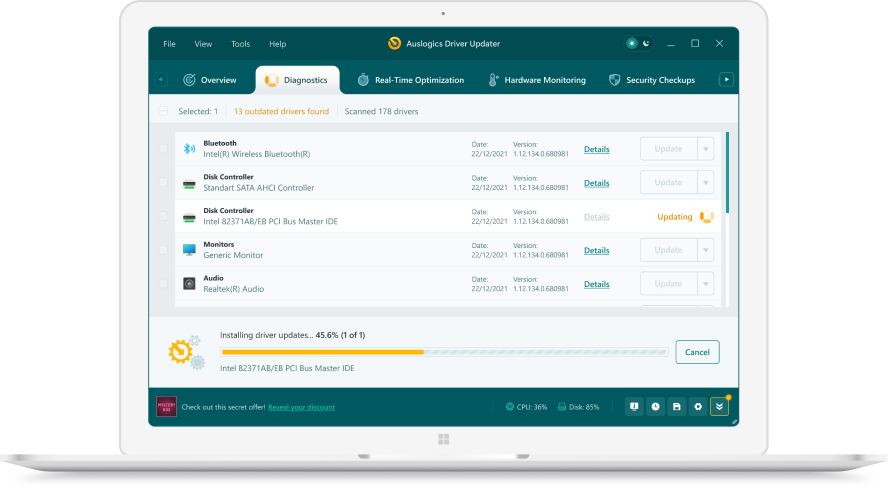 1. Scan. Download the free version and run a scan.
 2. Review. See each old or missing driver with its newer version.
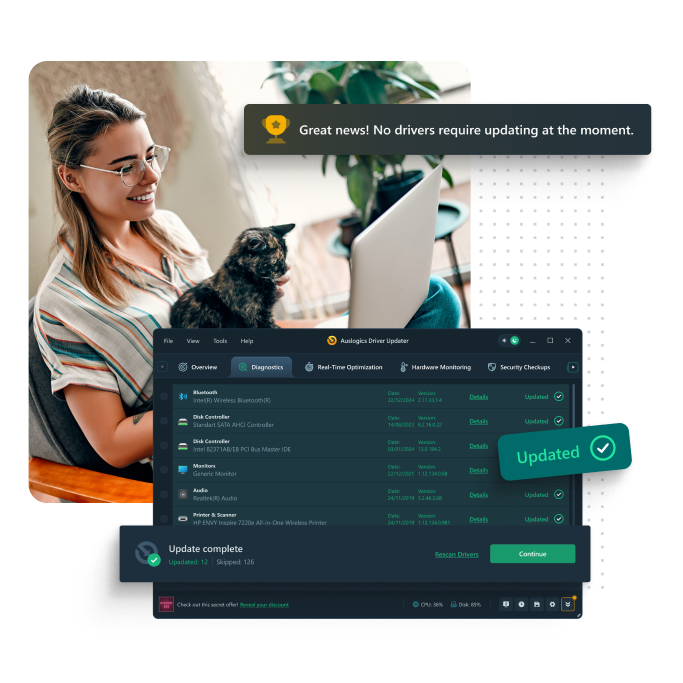 3. Update. Update one driver free, or all at once with Pro.

Update this driver automatically
Finds and updates this driver and every other outdated driver on your PC.
Auslogics Driver Updater · Free scan · Windows 11, 10, 8, 7 · Backup before every change
Why is my PC microphone not working?
On Windows 11 the mic is behind three separate gates. The privacy switches decide whether any program may record. The Sound page decides which input is the default. Each app then makes its own choice of device. A mic can pass the Windows test and still be silent in a call app if that app points at a different input, such as a webcam mic you are not facing. When the Windows test bar does not move at all, the problem sits lower: hardware, mute, or driver.
Laptop internal mic, USB mic or headset?
| Mic type | What usually fails | First check |
|---|---|---|
| Laptop internal array | Mute key or privacy switch | Mute light, then Privacy & security |
| USB mic or USB headset | Wrong default input | Input list under Settings, System, Sound |
| 3.5 mm headset | Single plug in a split jack | Use a combo jack or a splitter |
| Bluetooth headset | Stereo mode has no mic | Pick the headset’s hands-free input |
A laptop internal mic depends on the audio driver from the PC maker. If the internal mic disappears from the input list after an update, reinstall the audio package listed for your exact model on the maker’s support site before trying a generic driver.
Enhancements and the audio driver
Some audio drivers add noise suppression or voice effects. If your voice sounds cut off or robotic, open the mic under Settings, System, Sound and turn off any enhancement or effect it offers. When Device Manager shows an error on the audio device, or the mic is missing from every list, a clean driver reinstall as in step 6 is the next move.
Questions
Why does my laptop microphone not work in Zoom or Teams only?
The app may have its own mic choice, or Let desktop apps access your microphone is off. Microsoft also says to close all apps and restart after changing these toggles.
Why is my Realtek microphone not working after an update?
An update can swap the laptop maker's audio driver for a different one. Install the audio driver for your exact model from the PC maker's support page, and use Realtek's own downloads only if the maker has none.
My webcam has a mic. Do I need camera permission too?
Microsoft says yes in some cases. Turn on Camera under Settings, Privacy & security, Camera as well as the microphone switches.
Is it different on Windows 10?
The toggles are under Settings, Privacy, Microphone, and the test is called Test your microphone. Windows 10 also has a Levels tab with Microphone Boost under Device Properties.