Controller not connecting to PC
When an Xbox or PS5 controller will not connect to a PC, plug it in with a USB-C data cable first: if that works, the problem is Bluetooth pairing, not the controller. Xbox Support covers USB, Bluetooth and the Xbox Wireless Adapter plus firmware updates in the Xbox Accessories app. PlayStation Support covers DualSense pairing.
Checked November 3, 2026 against the manufacturer's own pages.
The short version
What to install and where it comes from. Every link goes to the manufacturer or Microsoft, never to a copy.
Official files only, nothing bundled
Step by step
Charge or swap batteries first
Xbox Support says low batteries cause connection trouble even when the controller still lights up. Put in fresh AA batteries or fully charge the pack. Charge a DualSense for a while before pairing.
Test with a USB-C data cable
Plug the controller straight into a USB port on the PC, not a hub. Some cheap cables only carry power. If the controller works wired, the controller is fine and the problem is the wireless link.
Power cycle the Xbox controller
Hold the Xbox button for 5 to 10 seconds until the controller turns off. Wait a few seconds and press it again to turn it on.
Remove and pair it again
Open Settings, Bluetooth & devices, select the controller and choose Remove device. Then pick Add device, Bluetooth. On Xbox, hold the pair button until the logo flashes fast. On a DualSense, hold create and then the PS button until the light bar blinks.
Try the Xbox Wireless Adapter or fewer USB devices
If Bluetooth keeps failing, the Xbox Wireless Adapter for Windows is the other wireless route. Xbox Support notes that other USB devices and faulty cables can interfere with the signal, so unplug what you do not need and restart the PC.
Update or reset the controller
For Xbox, install the Xbox Accessories app from the Microsoft Store, connect by USB and accept any update. For a DualSense, press the reset button in the hole on the back for at least 5 seconds, then pair again.
Faster option: update drivers automatically
The steps above fix this one device. If several drivers are old, a driver updater finds and installs them all in one go, and backs up the current ones first.
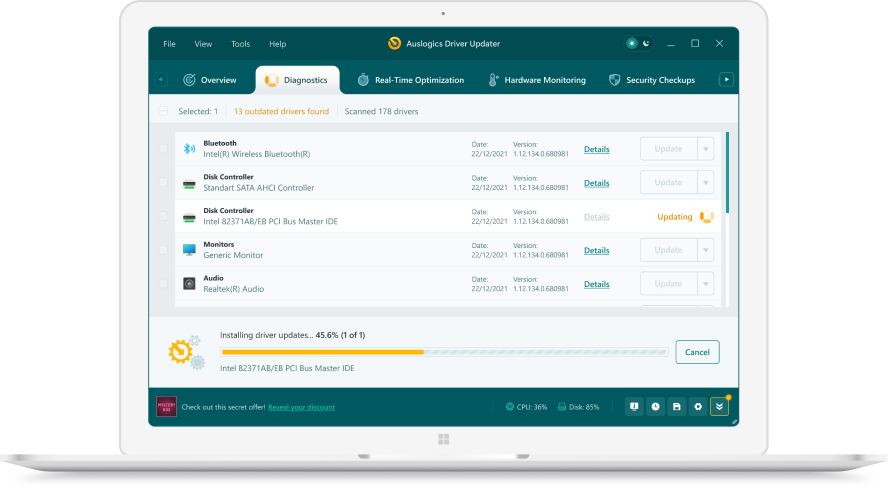 1. Scan. Download the free version and run a scan.
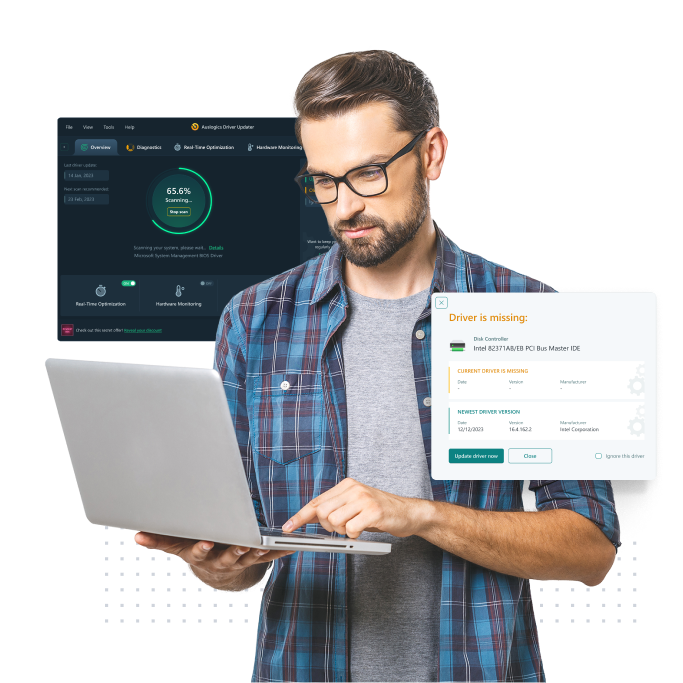 2. Review. See each old or missing driver with its newer version.
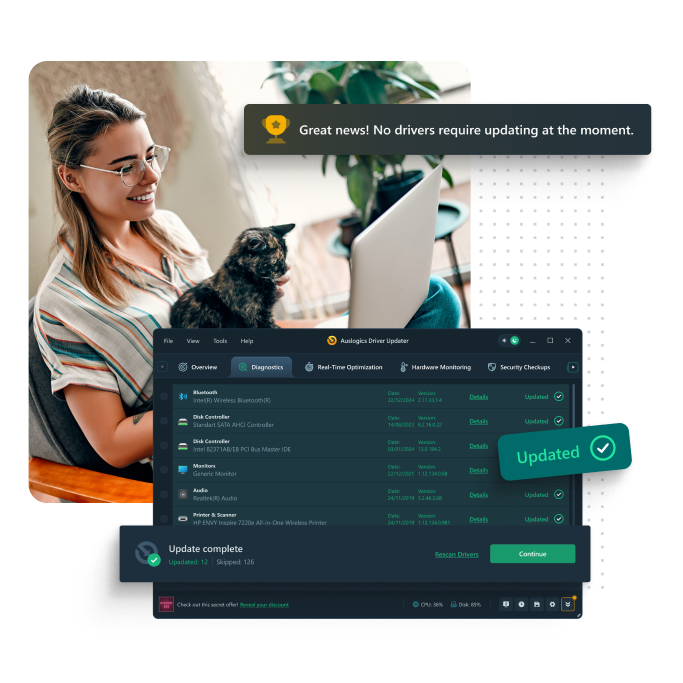 3. Update. Update one driver free, or all at once with Pro.

Update this driver automatically
Finds and updates this driver and every other outdated driver on your PC.
Auslogics Driver Updater · Free scan · Windows 11, 10, 8, 7 · Backup before every change
Why is my Xbox controller not connecting to my PC?
Xbox Support lists three ways onto a Windows PC: a USB cable, the Xbox Wireless Adapter for Windows, or Bluetooth on controllers that have it. Some PCs also have Xbox Wireless built in, so they need no adapter. Each route fails for different reasons, so test them in order. A cable rules out the controller. The adapter rules out the PC’s Bluetooth radio. Bluetooth is the route most likely to break, because it depends on the PC’s Bluetooth driver as well.
| Route | Needs | Firmware updates in Xbox Accessories |
|---|---|---|
| USB-C cable | A cable that carries data | Yes |
| Xbox Wireless Adapter | The adapter in a USB port | Yes |
| Bluetooth | A Bluetooth controller and PC radio | Most features not supported |
If the Xbox button will not light at all after fresh batteries and a power cycle, Xbox Support says the controller itself may need replacing and points to its warranty pages.
Why is my PS5 controller not connecting to PC?
PlayStation lists Windows 10 (64-bit) and Windows 11 as supported for the DualSense, by USB Type-C or Bluetooth. The most common miss is starting pairing while the controller is still linked to a console, so its player light is on. Hold the PS button until that light goes off, then hold create and PS together. When Windows pairs, the light bar blinks and the player light turns on.
Some features need the cable. PlayStation says haptic feedback on PC requires a USB connection, and the headset jack needs a wired link. If the controller pairs but buttons do nothing, PlayStation’s fix is a reset: press and hold the button in the hole next to the Sony logo on the back for at least 5 seconds.
When is it the PC and not the controller?
If a second controller also fails over Bluetooth, the PC’s Bluetooth adapter or driver is the likely cause. Check Device Manager for a Bluetooth entry with a warning mark, and see our Bluetooth guide. If wired mode also fails on every port, try another cable before blaming the PC.
Questions
Why will my Xbox controller not pair by Bluetooth?
Only some Xbox controllers have Bluetooth, which Xbox Support says you can tell from the plastic around the Xbox button. Older pads without it need a USB cable or the Xbox Wireless Adapter for Windows.
Why does the Xbox Accessories app not see my controller?
Xbox Support says most app features are not supported over Bluetooth on Windows. Connect with a USB cable or the Xbox Wireless Adapter to update or configure the controller.
Why is my PS5 controller not connecting to my PC?
Check the player indicator is off before pairing, and unplug any cable. A DualSense remembers up to four devices, and if all slots are used, the one unused longest gets replaced. Reset it if pairing still fails.
My controller connects but games ignore it. Why?
That is a game or launcher setting, not a Windows driver problem. Some game launchers have their own controller input settings that translate PlayStation pads for games, and support varies by title.
Do I need to download a controller driver?
Neither Xbox nor PlayStation names a separate driver for Windows 10 or 11. The controllers work as game controllers out of the box. Updates come from the Xbox Accessories app or the PlayStation Accessories app.