Fix printer error 0x00000bc4
0x00000bc4 is ERROR_PRINTER_NOT_FOUND, shown as 'No printers were found.' Windows searched for the printer you asked for and came back empty. Microsoft's first fix is to stop the Print Spooler, empty the spool PRINTERS folder and start the service again. If the printer is shared from another PC, add it by IP address or set the RPC connection policy.
Checked November 10, 2026 against the manufacturer's own pages.
The short version
What to install and where it comes from. Every link goes to the manufacturer or Microsoft, never to a copy.
Official files only, nothing bundled
Step by step
Clear and reset the print spooler
Open Services, double-click Print Spooler and select Stop. Open the folder %WINDIR%\system32\spool\PRINTERS and delete every file in it. Back in Services, set Startup type to Automatic, select Start and then OK. This is the resolution in Microsoft's KB2793718.
Remove the half-installed printer
Go to Settings, Bluetooth & devices, Printers & scanners. If a copy of the printer is listed with no status, select it and choose Remove, so the next attempt starts clean.
Turn on network discovery for shared printers
On both PCs open Settings, Network & internet, Advanced network settings, Advanced sharing settings. Under Private networks, switch on Network discovery and File and printer sharing. Without these, a client may find no printers on the host.
Add the printer by IP address
Print a network configuration page from the printer's own menu to read its IP address. In Printers & scanners choose Add device, Add manually, Add a printer using an IP address or hostname, and enter it.
Set the RPC connection policy on a Windows 11 client
In gpedit.msc open Computer Configuration, Administrative Templates, Printers, Configure RPC connection settings. Choose Enabled, RPC over named pipes, and Authentication enabled. Restart and add the shared printer again.
Let the host accept both protocols
If the PC that shares the printer runs Windows 11 22H2 or later, open the same Printers folder in gpedit.msc on it. Enable Configure RPC listener settings and choose RPC over named pipes and TCP.
Faster option: update drivers automatically
The steps above fix this one device. If several drivers are old, a driver updater finds and installs them all in one go, and backs up the current ones first.
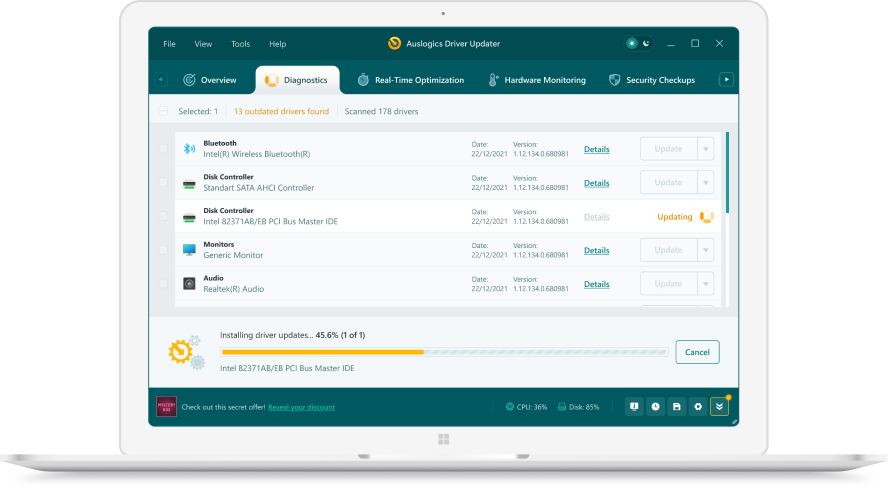 1. Scan. Download the free version and run a scan.
 2. Review. See each old or missing driver with its newer version.
 3. Update. Update one driver free, or all at once with Pro.

Update this driver automatically
Finds and updates this driver and every other outdated driver on your PC.
Auslogics Driver Updater · Free scan · Windows 11, 10, 8, 7 · Backup before every change
Where 0x00000bc4 comes from
Microsoft documents this code in two contexts. The Windows Server printing article KB2793718 lists “Operation could not be completed (error 0x00000bc4). No printers were found.” among symptoms on a client after a third-party print driver is installed or upgraded. The cause it gives is a third-party driver or service that interferes with existing or new printers. Its only fix is clearing the spool folder and restarting the service, which takes a minute and is worth doing first.
The second context is network printing between two Windows PCs. When the client asks the host for a printer and the host returns nothing, the client reports the same code. A blocked connection, discovery turned off, or a protocol mismatch all end the same way.
How to tell which case you have
Look at what you were doing when the message appeared. A driver installer that fails partway points to the first case. Add device in Printers & scanners failing on a printer shared by another PC points to the second. Also check whether the printer appears under the host PC’s name in File Explorer’s Network view. If it is missing there too, the host is not sharing it the way the client expects.
The listener side is easy to miss
Most advice only changes the client. Microsoft’s Printers Policy CSP describes a separate Configure RPC listener settings policy for the computer that shares the printer. Its default accepts RPC over TCP with Negotiate authentication. When clients use named pipes, the host needs the RPC over named pipes and TCP option so both kinds of connection are accepted.
Questions
What does No printers were found (0x00000bc4) mean?
It is Win32 error 3012, ERROR_PRINTER_NOT_FOUND. The request reached the print system, but the printer it named was not there to answer.
Why did 0x00000bc4 start after a Windows 11 upgrade?
From version 22H2, Windows 11 uses RPC over TCP by default for outgoing connections to another PC's spooler, per Microsoft's Printers Policy CSP. A host set up for a different protocol may then return no printers.
Can I fix 0x00000bc4 on Windows 11 Home?
Home has no Group Policy Editor. Clear the spooler, turn on network discovery, and add the printer by its IP address. That route does not depend on the RPC policy at all.
Is 0x00000bc4 a driver problem?
It can be. Microsoft's KB2793718 lists it among errors seen while installing or upgrading a third-party printer driver. Get the newest driver from the printer maker's support site before you add the printer again.