Fix printer error 0x00000709
0x00000709 is ERROR_INVALID_PRINTER_NAME, which Microsoft defines as 'The printer name is invalid.' Windows could not match the name it was given to a printer it can reach. On a single PC, turn off Let Windows manage my default printer and pick the default yourself. For a shared printer, update both computers and add the printer again by its exact share name.
Checked November 10, 2026 against the manufacturer's own pages.
The short version
What to install and where it comes from. Every link goes to the manufacturer or Microsoft, never to a copy.
Official files only, nothing bundled
Step by step
Stop Windows from choosing the default printer
Open Settings, Bluetooth & devices, Printers & scanners. Under Printer preferences, switch off Let Windows manage my default printer. Then select the printer you want and choose Set as default. This clears the most common case, where the error pops up only when you pick a default.
Check the exact printer or share name
For a shared printer, open File Explorer on the client and type two backslashes followed by the host PC's name. The window lists the shared printers with their real share names. Use that exact name when you add it.
Install updates on both computers
Go to Settings, Windows Update, Check for updates on the PC that shares the printer and on the PC that prints. Microsoft fixed a known 0x00000709 problem with remote shared printers in KB5007253 and later updates.
Restart the spooler and re-add the printer
Run services.msc, right-click Print Spooler and pick Restart. Then remove the printer in Printers & scanners and add it again with Add device, Add manually, Select a shared printer by name.
On Windows 11 Pro, set the RPC connection protocol
From version 22H2, outgoing connections to a remote spooler use RPC over TCP by default. In gpedit.msc go to Computer Configuration, Administrative Templates, Printers, Configure RPC connection settings. Set Enabled, choose RPC over named pipes and set authentication to Authentication enabled.
Add the printer by IP address instead
If the printer is on the network, skip the share. Choose Add manually, then Add a printer using an IP address or hostname, and install the maker's driver.
Faster option: update drivers automatically
The steps above fix this one device. If several drivers are old, a driver updater finds and installs them all in one go, and backs up the current ones first.
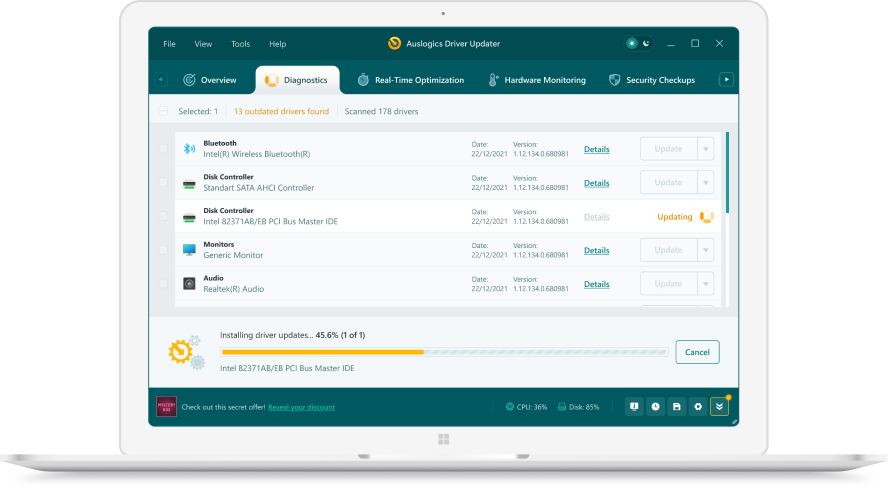 1. Scan. Download the free version and run a scan.
 2. Review. See each old or missing driver with its newer version.
 3. Update. Update one driver free, or all at once with Pro.

Update this driver automatically
Finds and updates this driver and every other outdated driver on your PC.
Auslogics Driver Updater · Free scan · Windows 11, 10, 8, 7 · Backup before every change
Two very different triggers for the same code
0x00000709 turns up in two places, and the fix depends on which one you see. If the message appears on a single PC when you right-click a printer and choose Set as default, the shared-printer steps do not apply. The problem sits in how Windows tracks the default device. If it appears while you add a printer from another computer on your network, the name the host gives does not match one the client can open.
A quick test tells them apart. Print a test page to the local printer from its Properties window. If that works and only the default setting fails, go to the first step. If the shared printer never appears at all, start with updates.
The 2021 update issue and Windows 11 version 22H2
In late 2021, Microsoft confirmed that recent updates could make clients fail with 0x00000709 when they connected to a printer shared from a Windows print server. Its KB5007253 notes for Windows 10 versions 2004 to 21H2 list the fix. Any machine still on an update level from that period should be brought current.
Windows 11 version 22H2 added the Configure RPC connection settings policy. Microsoft’s Printers Policy CSP states that the default protocol for outgoing connections is RPC over TCP. If the host does not accept that kind of connection, the client cannot open the printer by name. Switching the client to named pipes with authentication enabled is the documented way to change the protocol.
When the share name has odd characters
Long names, spaces or symbols in a share name are a less common cause. On the host, open the printer’s Printer properties, go to the Sharing tab and give it a short name with only letters and numbers. Add the printer again on each client with the new name.
Questions
What does Operation could not be completed (error 0x00000709) mean?
Windows looked up a printer by name and the name did not resolve to a printer it could open. Microsoft lists code 1801 as ERROR_INVALID_PRINTER_NAME.
I only get 0x00000709 when I set a default printer. Why?
When Windows manages the default printer, it sets the default to the printer you used most recently. Turning that setting off and choosing one by hand removes that automatic switching.
Is the named pipes policy safe to use?
It is a Microsoft policy, not a hack. Microsoft notes that named pipe connections on PCs outside a domain have authentication off by default, so pick Authentication enabled. Windows 11 Home has no Group Policy Editor, so use the IP address method there.
Did Microsoft confirm 0x00000709 as a known issue?
Yes, for one case. KB5007253 for Windows 10 says it addresses a known issue that caused 0x000006e4, 0x0000007c or 0x00000709 when connecting to a remote printer shared on a Windows print server.