Wi-Fi keeps disconnecting
Wi-Fi that keeps disconnecting on Windows 11 or 10 is most often the adapter being put to sleep to save power. In Device Manager, open the Wi-Fi adapter, go to Power Management and clear Allow the computer to turn off this device to save power, then install the Wi-Fi driver from your PC maker or Intel. Microsoft's Fix Wi-Fi connection issues guide lists the remaining steps.
Checked November 3, 2026 against the manufacturer's own pages.
The short version
What to install and where it comes from. Every link goes to the manufacturer or Microsoft, never to a copy.
Official files only, nothing bundled
Step by step
Stop Windows turning the adapter off
Right-click Start and open Device Manager. Expand Network adapters, double-click your Wi-Fi adapter and open the Power Management tab. Clear Allow the computer to turn off this device to save power and select OK.
Set the power plan to full performance
Microsoft also points to Wireless Adapter Settings in the advanced power options. Set Power Saving Mode to Maximum Performance, at least while plugged in. Intel warns that less power saving drains a laptop battery faster.
Forget the network and join it again
Open Settings, Network & internet, Wi-Fi, Manage known networks. Select your network, choose Forget, then reconnect and type the password again.
Check roaming on Intel adapters
On the adapter's Advanced tab in Device Manager, look at Roaming Aggressiveness. Intel's default is Medium and Intel advises against leaving it at the lowest or highest value.
Install the Wi-Fi driver from the right source
Get the wireless driver from your laptop or motherboard maker's support page first. If the maker no longer updates it and the adapter is Intel, use Intel's Wireless Wi-Fi driver package.
Reset the network stack, then network reset
In an administrator Command Prompt run netsh winsock reset, netsh int ip reset, ipconfig /release, ipconfig /renew and ipconfig /flushdns, then restart. If drops continue, use Settings, Network & internet, Advanced network settings, Network reset.
Faster option: update drivers automatically
The steps above fix this one device. If several drivers are old, a driver updater finds and installs them all in one go, and backs up the current ones first.
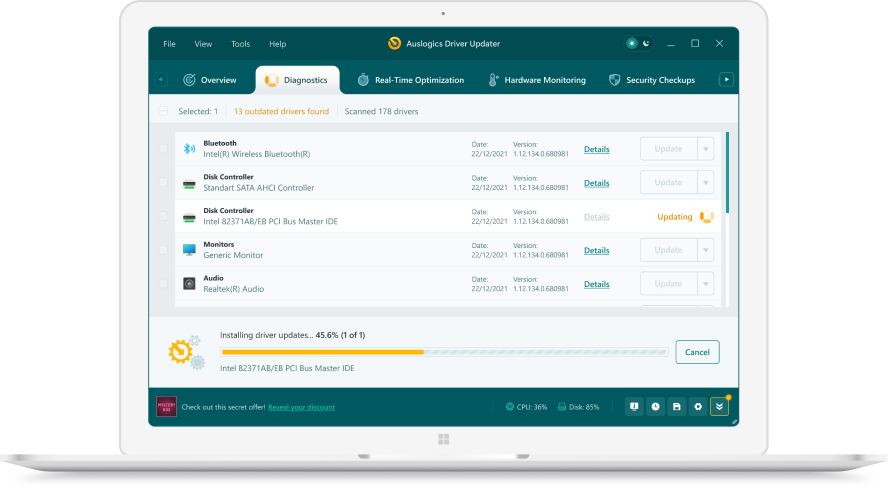 1. Scan. Download the free version and run a scan.
 2. Review. See each old or missing driver with its newer version.
 3. Update. Update one driver free, or all at once with Pro.

Update this driver automatically
Finds and updates this driver and every other outdated driver on your PC.
Auslogics Driver Updater · Free scan · Windows 11, 10, 8, 7 · Backup before every change
Why does Wi-Fi keep disconnecting on Windows 11?
Most repeated drops come from one of four places: power saving that sleeps the adapter, a driver that does not suit the exact adapter in your PC, roaming that hops between access points or bands, or the router itself. A quick test tells them apart. If only the PC drops while a phone beside it stays online, look at the PC. If every device drops together, the router or the internet line is the problem, and no Windows setting will fix it.
Drops that happen after the laptop sits idle, or right after it wakes, point to power management. Drops while you walk around a house with a mesh system point to roaming. Drops that began right after a Windows feature update or a driver update point to the driver.
Which adapter settings matter?
Open Device Manager, expand Network adapters and double-click the wireless card. Two tabs matter. Power Management has the box that lets Windows switch the card off. Advanced lists properties that the driver exposes, and the names differ by maker.
| Setting | Where | What Intel or Microsoft says |
|---|---|---|
| Allow the computer to turn off this device | Power Management tab | Microsoft says to clear it |
| Power Saving Mode | Power options, Wireless Adapter Settings | Microsoft: set Maximum Performance |
| Roaming Aggressiveness | Advanced tab (Intel) | Intel default Medium, avoid min or max |
| Wireless mode | Advanced tab (Intel) | Intel: enable support for all modes |
Change one thing at a time and use the PC for a day before changing the next, so you know which change helped.
Where should the Wi-Fi driver come from?
Microsoft’s order is Windows Update, then the PC maker. Laptop makers often ship a wireless driver tuned for their antenna and BIOS, so their support page comes first. Intel offers a generic Wireless Wi-Fi package for its own cards when the maker has stopped updating. Before you uninstall the current driver, Microsoft suggests downloading a backup driver from the PC maker, because the PC will have no Wi-Fi until a driver is back.
Questions
Why does my Wi-Fi drop when the laptop sleeps or idles?
Windows can power down the wireless adapter to save battery and may not wake it cleanly. Clearing the power saving box on the adapter's Power Management tab is the usual cure for drops that follow idle time.
Does network reset delete anything?
Microsoft says it removes every installed network adapter and its settings. VPN clients and Hyper-V virtual switches may need reinstalling, and saved networks may switch to the public profile. Microsoft calls it the last step to try.
Should I always install the newest Intel Wi-Fi driver?
Intel says you do not need the latest version unless you have problems. Intel also tells you to check with the PC maker for wireless, chipset and BIOS updates before using its generic package.
Is it the router and not the PC?
If phones and other devices drop at the same moment, start with the router. Intel suggests choosing a fixed channel instead of AUTO when disconnects are random, using 1, 6 or 11 on 2.4 GHz.
Is the fix different on Windows 10?
The steps match. Only the reset path differs: on Windows 10, network reset sits under Settings, Network & Internet, Status.