Fix audio crackling in Windows 11
Crackling or popping sound on Windows 11 is most often fixed by changing the Default Format on the Advanced tab of the device's Sound properties, for example to 24 bit or 16 bit at 48000 Hz, and by setting Audio enhancements to Off. If it persists, install the audio driver for your model from the PC maker's support page, as Microsoft advises.
Checked November 3, 2026 against the manufacturer's own pages.
The short version
What to install and where it comes from. Every link goes to the manufacturer or Microsoft, never to a copy.
Official files only, nothing bundled
Step by step
Change the Default Format
Search the taskbar for Control Panel and open Hardware and Sound, Sound. On the Playback tab, right-click your speakers or headphones and choose Properties. On the Advanced tab, pick a different Default Format, press Test, then OK. Try 48000 Hz options first.
Turn off Audio enhancements
In Settings, System, Sound, select the output device and scroll to Advanced settings. Set Audio enhancements to Off and play the same clip again.
Test exclusive mode
On the same Advanced tab, clear both boxes under Exclusive Mode and press OK. If crackling stops, one app was switching the device's format while it played.
Rule out power saving
Plug a laptop into mains power and set Settings, System, Power & battery, Power mode to Best performance. If the pops vanish, power saving is starving the audio path, so update the BIOS and chipset driver from the PC maker.
Fix Bluetooth crackle
Move closer to the PC and away from USB 3.0 drives. Connect your router on 5 GHz if it offers it. In Bluetooth & devices, Devices, open Advanced sound properties for the headset and set 2 channel, 16 bit, 48000 Hz.
Reinstall the audio driver
Install the audio driver listed for your model on the PC maker's site and restart. Use Roll Back Driver under Properties, Driver if the noise began right after a driver update.
Faster option: update drivers automatically
The steps above fix this one device. If several drivers are old, a driver updater finds and installs them all in one go, and backs up the current ones first.
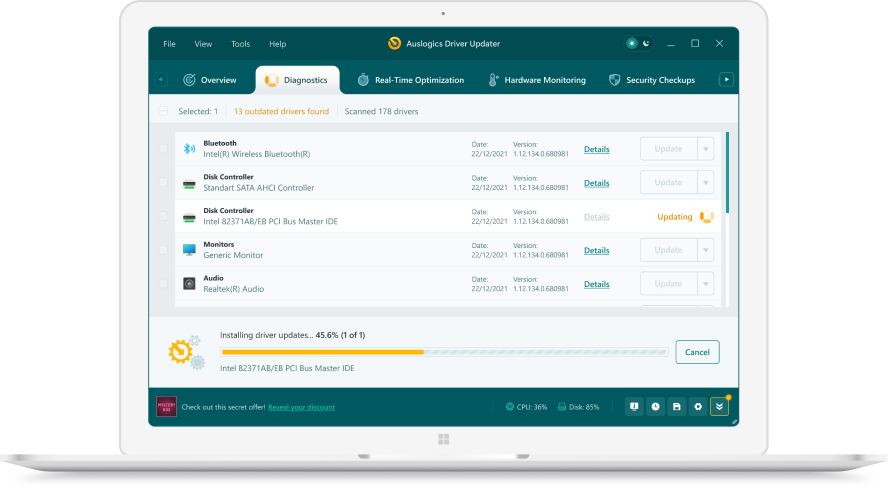 1. Scan. Download the free version and run a scan.
 2. Review. See each old or missing driver with its newer version.
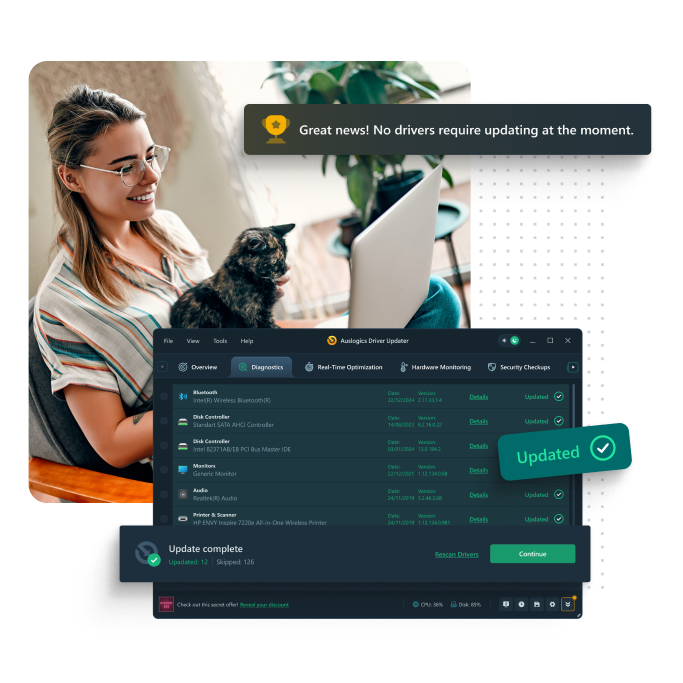 3. Update. Update one driver free, or all at once with Pro.

Update this driver automatically
Finds and updates this driver and every other outdated driver on your PC.
Auslogics Driver Updater · Free scan · Windows 11, 10, 8, 7 · Backup before every change
What causes audio crackling on Windows 11?
Crackling, popping and short dropouts happen when the audio buffer runs dry for a split second. The most common triggers are a sample rate the device handles badly, sound effects added by an enhancement layer, power saving that slows the processor at the wrong moment, and radio noise on Bluetooth. A faulty or mismatched audio driver can cause all of these at once, which is why the driver comes last in the list but often fixes it.
Start with the Default Format. Microsoft’s sound troubleshooting guide includes changing this setting on the Advanced tab and testing after each change. Some speakers, monitors with built in speakers and HDMI outputs only play cleanly at one rate. A setting that worked before a driver update may stop working after it.
Bluetooth speakers and headphones crackling
Bluetooth uses the 2.4 GHz band. Intel’s Bluetooth FAQ says its adapters can run Wi-Fi and Bluetooth at the same time, and recommends 5 GHz Wi-Fi where possible to avoid interference between the two. Distance, walls and your own body between the PC and the headset also weaken the signal. Microsoft adds that unshielded USB 3.0 devices near the Bluetooth adapter can disturb the link.
Which driver should I install?
Most laptops use a Realtek, Cirrus Logic or Conexant codec tuned by the PC maker, often with extra software such as Nahimic or Dolby on top. Take the audio driver listed for your exact model on the PC maker’s page. Microsoft’s guide also says that if Windows finds no driver, you should get the latest one from the device maker’s website. Use the generic Realtek package only when your PC maker has nothing for your model.
Questions
Why do my speakers crackle only when the PC is busy?
Sound that breaks up under heavy load points to delays in a driver, not to the speakers. Update the chipset, graphics and network drivers from your PC maker, then test again with fewer apps open.
Is the crackling a hardware problem?
Plug a different pair of headphones into the same port. If both crackle, the cause is in Windows or the driver. If only one pair does, or the noise changes when you wiggle the plug, it is the cable, jack or speaker.
Why does my Bluetooth headset sound worse on calls?
Microsoft says the A2DP profile is used for higher quality streaming. When an app opens the headset microphone, Windows can switch to a calling profile with lower quality, which can sound rough or tinny.
Does a USB DAC or USB headset need a driver?
Most work with Microsoft's built in USB audio driver. If the maker offers its own driver or firmware for your model, install it from the maker's support page.